
Investment management process
09 Wednesday Oct 2019
Posted in Fixed Assets, Miscellaneous, Project

09 Wednesday Oct 2019
Posted in Fixed Assets, Miscellaneous, Project
06 Friday Jan 2017
Posted in Project
Project related expense invoices can be recorded in a number of different forms and journals, such as the Accounts Payable (AP) invoice journal, the project expense journal or the AP invoice workbench, to mention only some. When it comes to expense invoice recording for projects, an important consideration is the time at which those expenses can be identified at the project level. The timing aspect is important especially in companies that face long invoice throughput times due to detailed invoice control and approval procedures.
To identify process related differences in expense invoice recording, an expense invoice for $150 will be recorded next through a standard AP invoice journal. This process will then be compared with entering a similar invoice through the so-called invoice workbench.
Let’s get started with the process of recording an expense invoice for a project through a vendor invoice journal, which is shown in the next figure. Please note that the vendor invoice line and the project to which the expenses are posted to, are shown in the upper part of the next screen-print whereas all project specific information is included in the project tab shown in the lower part of the same screen-print.
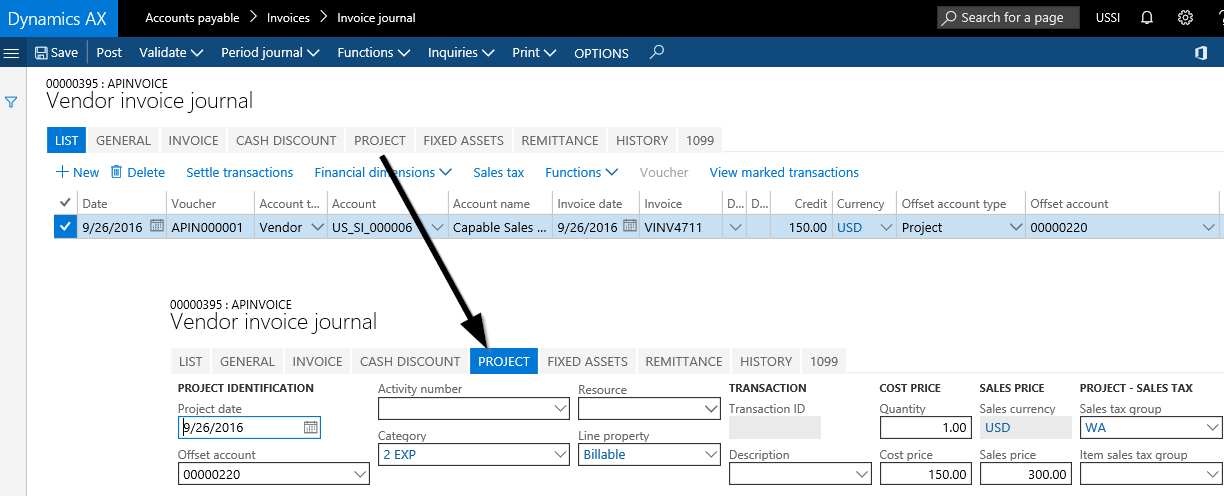
As one might expect, after recording the invoice but before posting it, no costs can be identified at the project level. Please see the next figure.

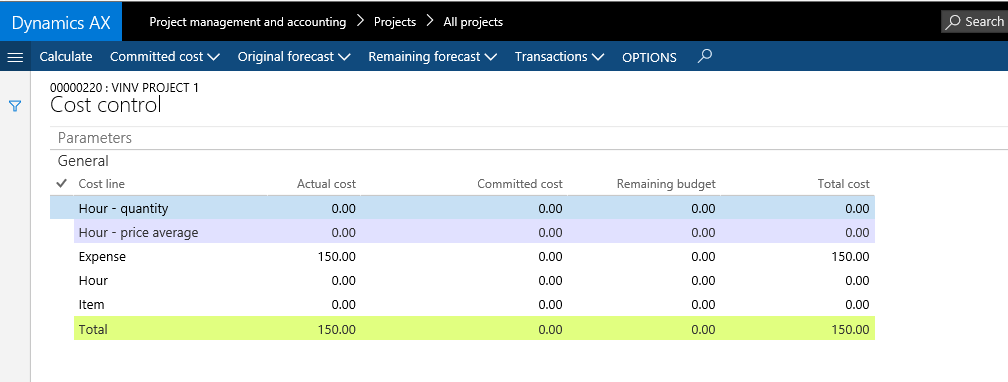
Once the invoice is posted, the respective project expenses are recorded as actual project costs. This can be identified from the actual cost column of the cost control window shown in in the next screen-print.
Let’s now have a look at what difference recording a similar invoice through the vendor invoice workbench – exemplified in the following screen-print – makes.

Except for the way how the expense invoice data are entered, the same information is recorded in the vendor invoice workbench shown below.
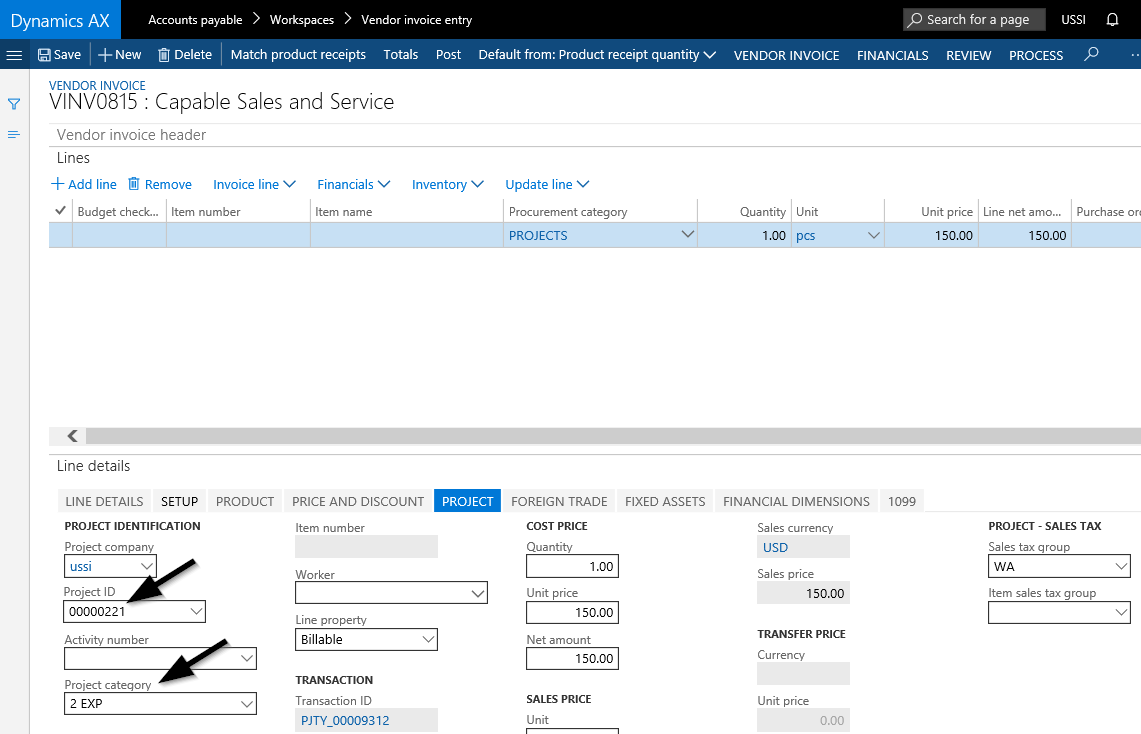
Yet, different from before, the project expense can already be identified at the project level, once the invoice has been recorded. For details, please see the project expense amount shown in the committed cost column of the cost control form that is illustrated in the next figure.

It is this ability of showing recorded project expenses early that differentiates the process of entering project related expense invoices through the vendor invoice workbench from recording them through vendor invoice journals. A knowledge of this difference is important especially in companies that see long invoice throughput times because an early identification of (forthcoming) project expenses can avoid wrong interpretations and subsequent actions.
Note: A prerequisite for becoming able to identify project expenses early through the committed cost functionality is the activation of the corresponding project cost control parameters shown in the next screen-print.

In addition, a periodic batch job needs to be setup that identifies and illustrates the committed costs at the project level. Example:

Summary:
Using the committed cost functionality can be of vital importance for companies that face comparatively long invoice throughput times. Companies with short invoice throughput times do, on the other hand side, not considerably benefit from using the committed cost invoice feature that is only available for invoices recorded through the vendor invoice workbench. Expressed differently, companies, with short invoice throughput times have a greater flexibility when it comes to entering expense related project invoices.
06 Tuesday Dec 2016
Posted in Project
≈ Comments Off on Timesheets & missing working time
Tags
Before invoicing project customers and/or preparing the month-end close, it is a common practice to verify that all employees have recorded their working time. Dynamics AX supports this verification process through the missing timesheet report shown in the next screen-print.
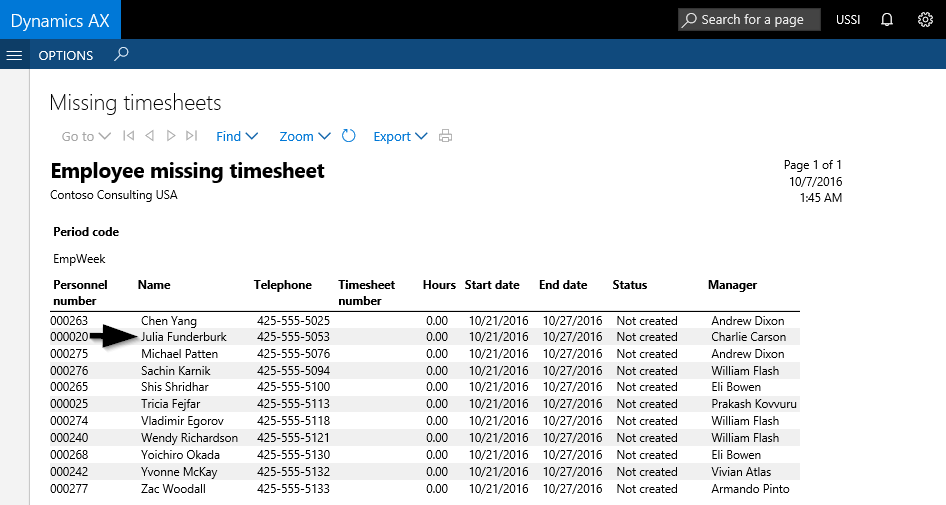
Note: The manager that can be identified in the last column of the missing timesheet report is the one that is specified in the ‘reports to’ field of the employee’s position assignment and can be found in the Human Resource (HR) module.
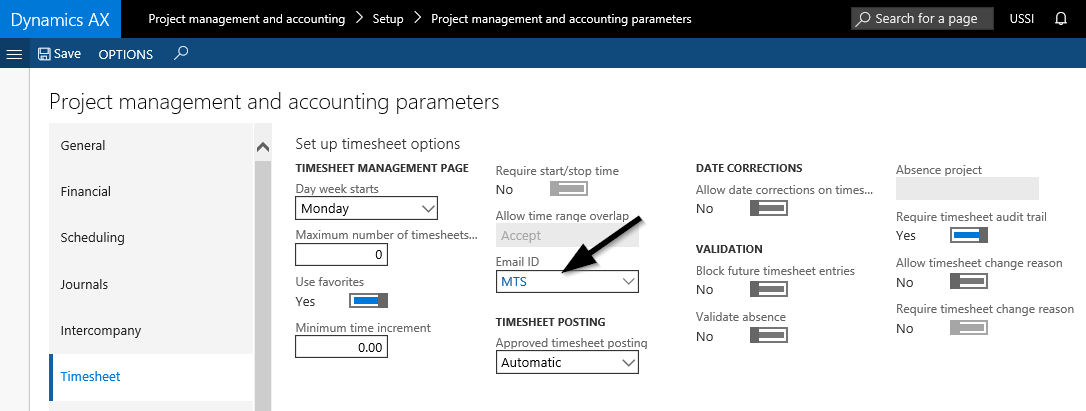
An alternative to generating the missing timesheet report is using the periodic missing timesheet email notification functionality. This periodic process sends automatic email reminders to those employees – not their superiors/managers (!) – that have not recorded their working time through timesheets. The content of the email is thereby defined in an email template, which needs to be linked to the Email Id field in the project parameters form shown in the next figure.
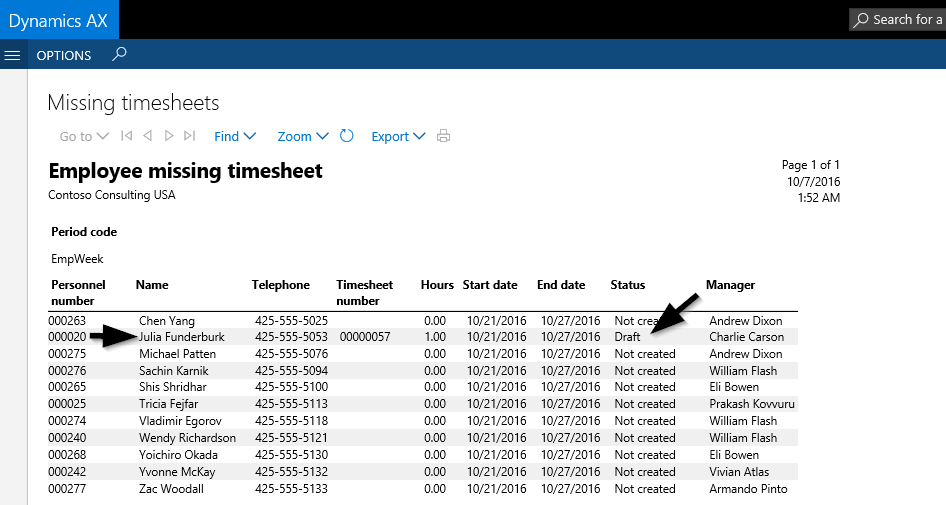
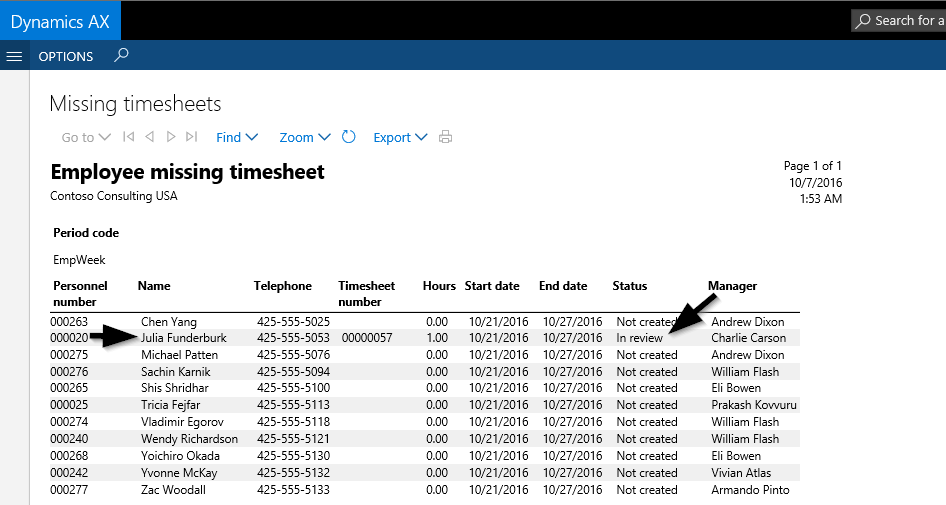
A major problem with the missing timesheet report (and the email notification process) is that it only verifies that some working time has been recorded. It does, however, not check whether and how much time is missing. The following screen-prints demonstrate the aforementioned by showing the content of the missing timesheet report for an employee (‘Julia’) that creates and saves her timesheet in a first step, submits it later on and finally gets it posted.
Step 1: Create & save timesheet
Step 2: Submit timesheet
Step 3: Post timesheet
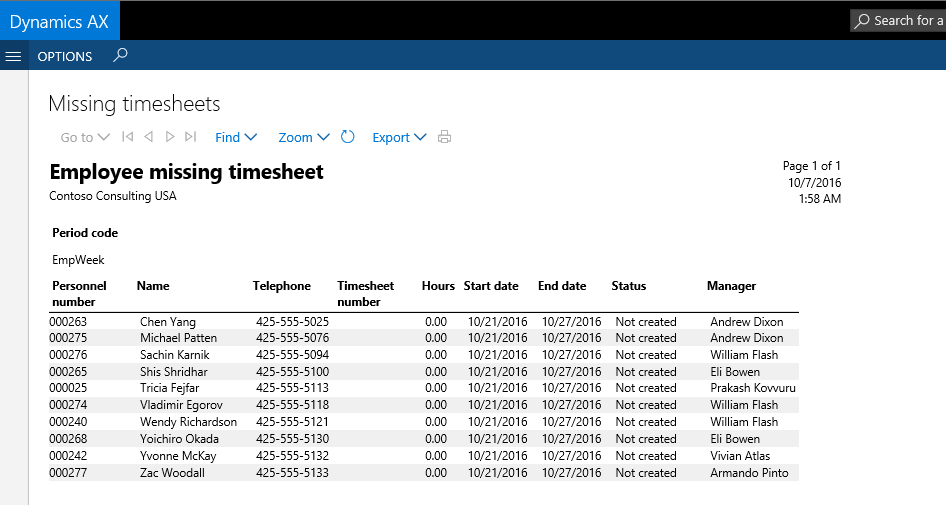
As one can identify from the previous screen-prints, the missing timesheet report does not include the employee (‘Julia’) anymore once the timesheet has been posted. This outcome is quite astonishing because only a single hour of working time has been recorded, which is by far less than what has been contractually agreed upon with the employee (40 hours/week).
Against the background of this result, it can be summarized that the missing timesheet functionality and the periodic email notification process are per se not sufficient to ensure that employees recorded all of their working time.
If the missing timesheet functionalities are not sufficient to verify whether or not employees recorded all of their working time, the question arises what other additional instruments are available that can help ensuring that employees record at least their contractually determined working time.
The main instrument available for that purpose is the timesheet policy feature. Provided that the contractual working time of employees is setup in a calendar and given that the timesheet policy prevents employees from submitting their timesheets if less than the contractually determined working time has been recorded, one can ensure that employees record their complete working time. The following example demonstrates how this can be achieved based on the timesheet policy configuration shown in the next screen-print.
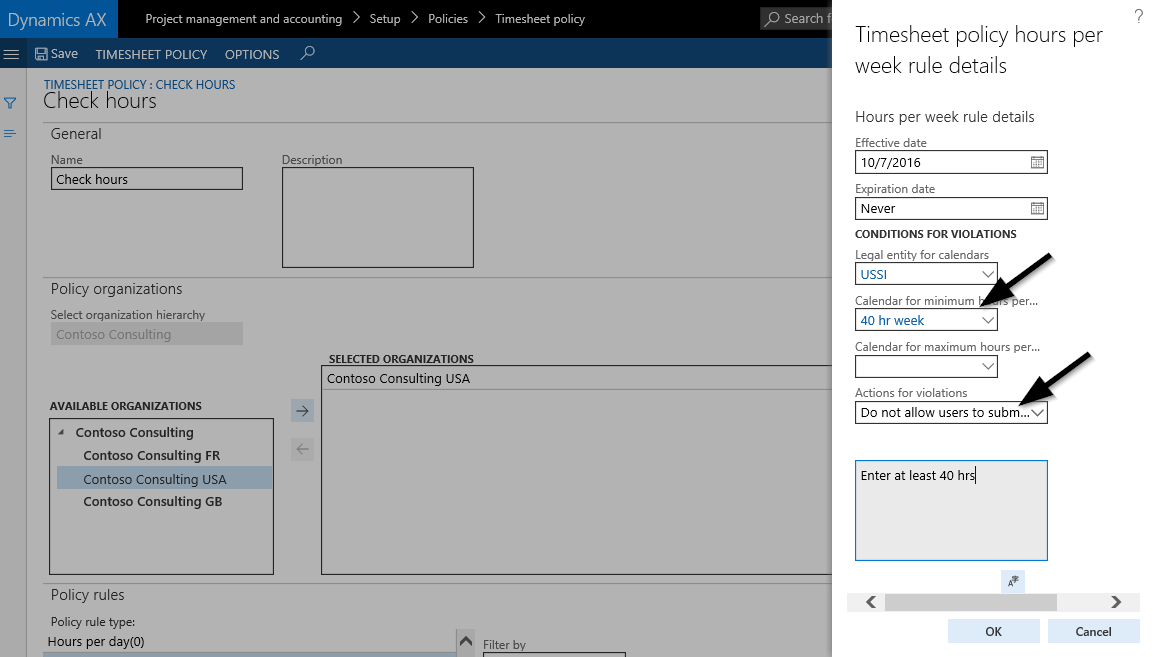
The timesheet policy illustrated in the screen-print above prevents users from submitting and posting timesheets with less than 40 hours working time recorded. Timesheets that include less hours – such as the one shown below – cannot be submitted and will consequently be picked up in the missing timesheet report. The following screen-prints exemplify this system behavior.
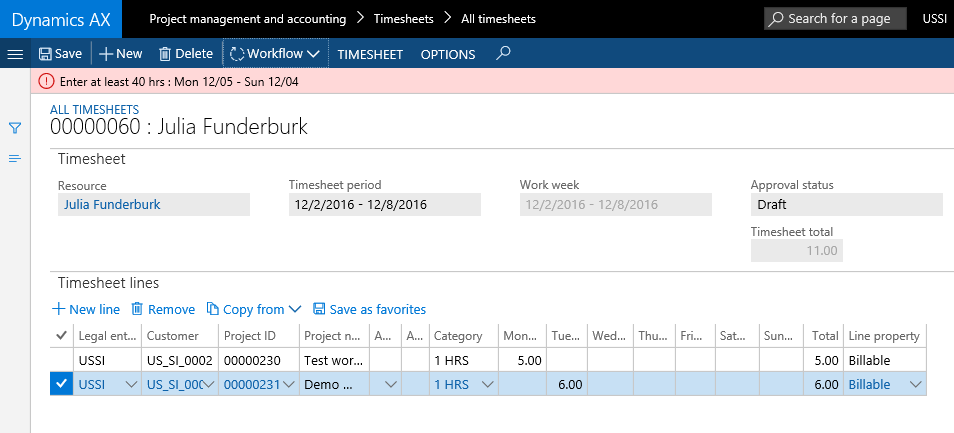
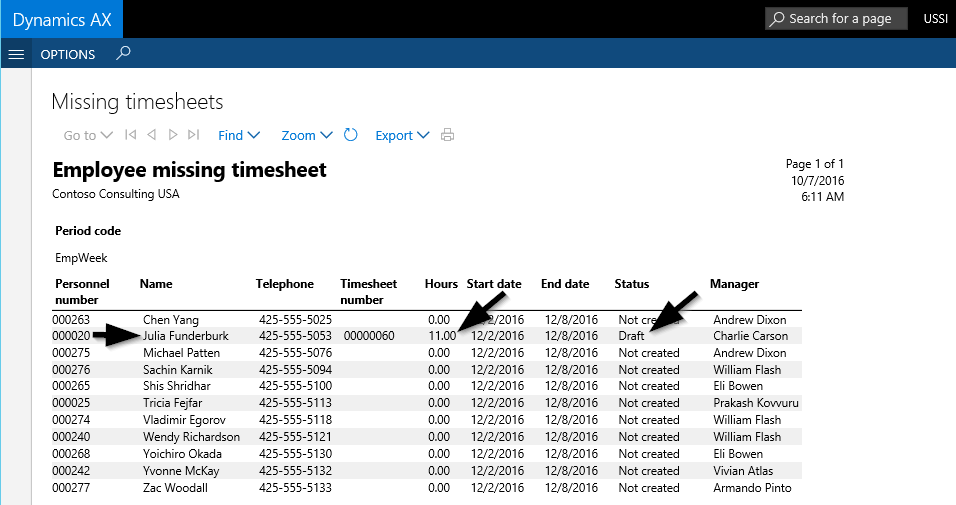
Please note that what has been said for timesheets that include less time than the one specified in the timesheet policy also applies for employees that have not even created a timesheet. It is thus the combined application of the timesheet policy and the missing timesheet report which help ensuring that employees recorded all of their working time.
Note: The illustrated timesheet policy and application of the missing timesheet report assume (a) that employees submit their working times only once a week in a single timesheet and (b) that employees record their full working time including absence times for holiday, illness, etc. Through a slightly different setup, the same result can also be achieved if employees are supposed to record their working time on a daily basis.
 Microsoft BizApps Finance & Controlling