
Within this post I will describe how incidental acquisition costs such as transportation and handling costs can be incorporated into the total acquisition costs of a company’s inventory.
Background
Most accounting regulations such as German business law, IFRS and US-GAAP explicitly require including incidental acquisition costs into the cost of a company’s inventory. For details, see e.g. §255 HGB, IAS 2, ARB 43 Ch. 4.
Implementation Dynamics AX
One option to incorporate incidental acquisition costs, such as freight charges, into a company’s inventory is using a charge code that is setup with a debit posting type “item” as illustrated in the following screenshot.
 Using charge codes is a good practice in Dynamics AX as long as a direct relationship between the direct and incidental acquisition costs of an item exists. Yet, if this relationship does not exist – e.g. because your freight forwarder send summary invoices for all shipments that have been made within a specified period – using charge codes similar to the one illustrated above might not be the right solution. That is because manually allocating freight charges to the different purchase orders and items is not manageable in practice. One possibility how this problem can be overcome will be illustrated below based on the following example.
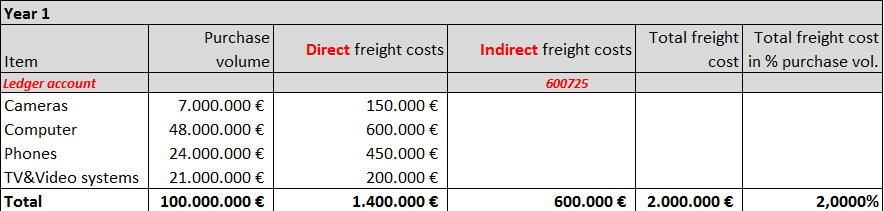 Within this example I assume that a company purchased various items (cameras, computers, etc.) for 100 mio. EUR in a given year. The different vendors that supplied the items charged 1.4 mio. EUR for transportation & freight to deliver the items to our warehouse. Those freight costs were recorded in Dynamics AX by using a charge code that has a debit posting type “item” setup. As a result, 101.4 mio. EUR were recorded as total inventory costs in the company’s inventory accounts (140300-140399).
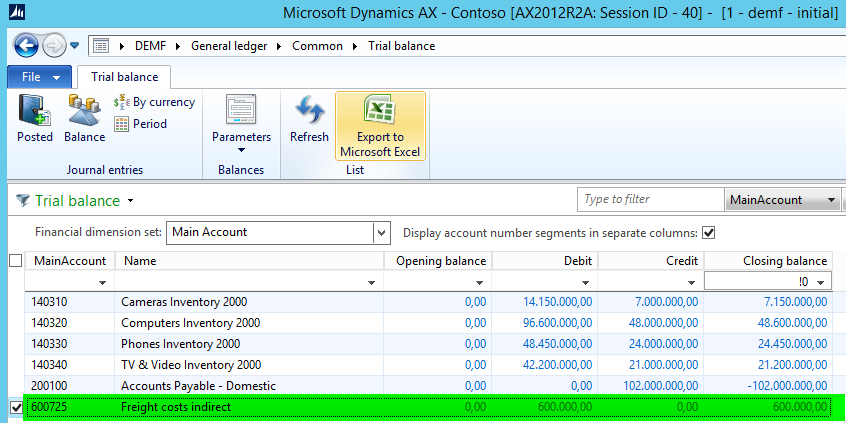
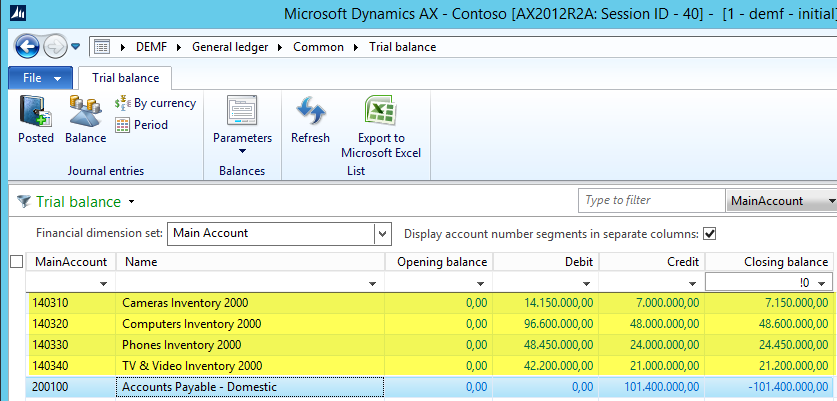 In addition to the direct freight costs, indirect freight cost invoices for another 600 TEUR were received and recorded in Dynamics AX. As those invoices had no direct relationship to purchase orders and/or item transactions, those invoices were directly recorded as an expense on ledger account 600725. Because of this treatment, the total inventory value is understated by 600 TEUR.

To avoid similar undervaluations in subsequent years, the following changes are introduced:
Step 1
The first change is setting up a new charge code (“freight allocation”) similar to the one previously used. The main difference is that this new charge code is setup with an offset (credit) posting type “ledger account”.

Step 2
Thereafter, the newly created charge code is setup as an automatic charge code to ensure that every item transaction gets an additional 2% freight charge allocated. (Note: the 2% charge value is derived from the relationship between the total freight costs and the purchase volume in the previous year).

Step 3
To avoid that freight charges are included twice in a company’s inventory value, a new direct freight charge code (“Freight new“) is setup next. This charge code is used in all purchase orders to record freight charges that vendors invoice directly. That is, this code will be used in situations where a direct relationship between purchase orders/item transactions and freight charges exists. Note that this freight charge code is setup with a debit posting type “ledger account”.
 In the following year, a total of 2.64 mio. EUR of direct and indirect freight cost invoices are recorded in Dynamics AX. Due to the newly setup direct freight charge code “Freight new” – see step 3 before – all freight costs are recorded on expense accounts (account 600720 and 600725). Thereof, a total of 2.4 mio. EUR are allocated to the inventory accounts due to the automatic charge code that was setup in step 2 (see the balance on ledger account 600735 below). The difference between the actual recorded freight costs of 2.64 mio. EUR and the allocated freight costs of 2.4 mio. EUR represents the amount by which the company’s total inventory is undervalued.

 This undervaluation can be explained by the automatic freight allocation percentage that was setup (2% of the purchase volume) and the actual freight costs recorded (2.2% of the purchase volume). The following graph exemplifies this relationship by showing actual and allocated freight costs and the resulting over-/underallocation for the current year.

At this point the question arises how to deal with the remaining over-/underallocated freight costs:
Option 1
Given that the over-/underallocated freight cost amount is small and negligible from a global company perspective, the first option is not to make any adjustment to the over-/underallocated freight cost amount and to leave the remaining amount in the profit and loss statement.
Option 2
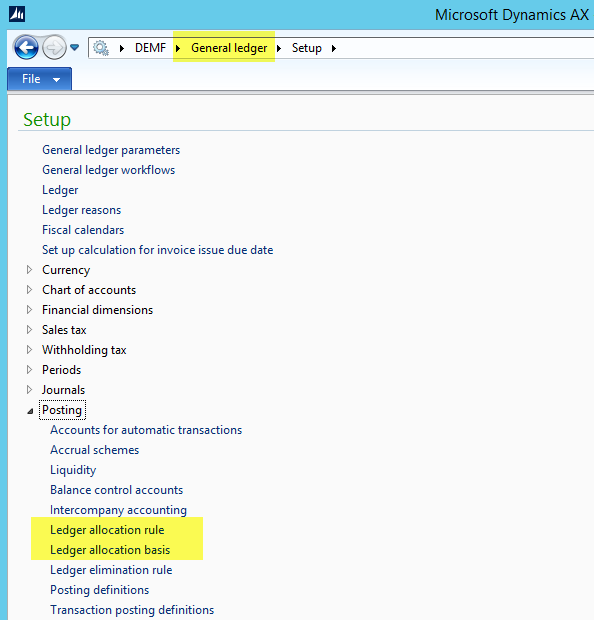
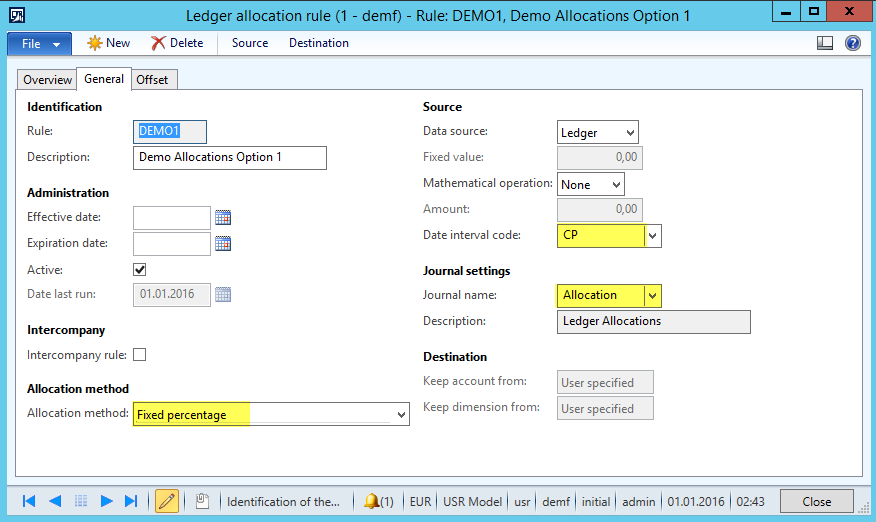
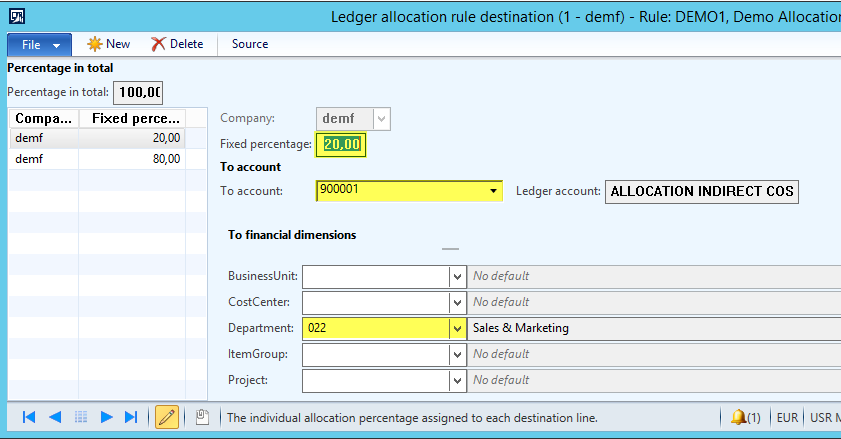
If a significant amount remains on the freight accounts in the income statement, a General Ledger allocation rule can be used to shift the un-allocated amount from the freight accounts in the income statement to the inventory accounts in the balance sheet. This can be realized by specifying that the sum of the freight expense accounts (600720-600735) will be allocated to an inventory account used for posting manual adjustments; in the example used, account no. 140301.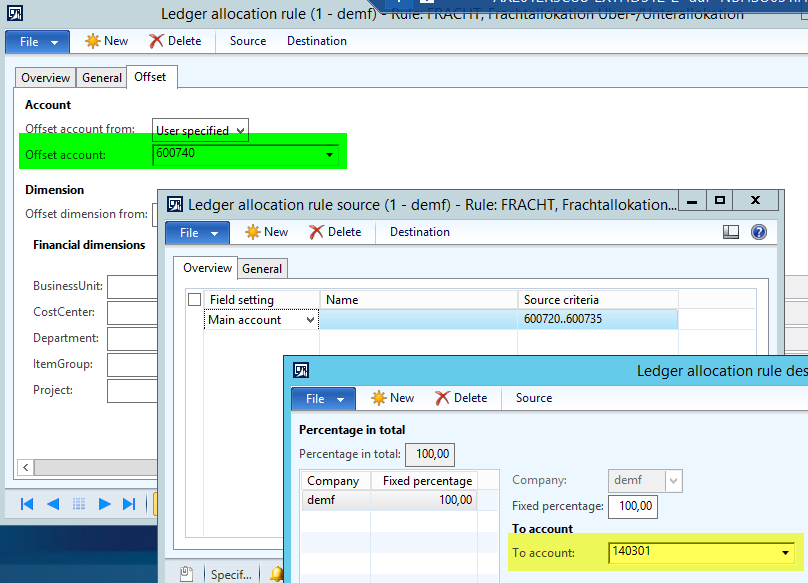 After running the ledger allocation rule in General Ledger the sum of all inventory accounts (140301-140340) equals the total purchase cost plus the total (direct and indirect) freight costs. In the example used 122.64 mio. EUR. At the same time, the freight expense accounts in the income statement (600720-600740) add up to 0 EUR, illustrating that all freight costs are recorded in the balance sheet.
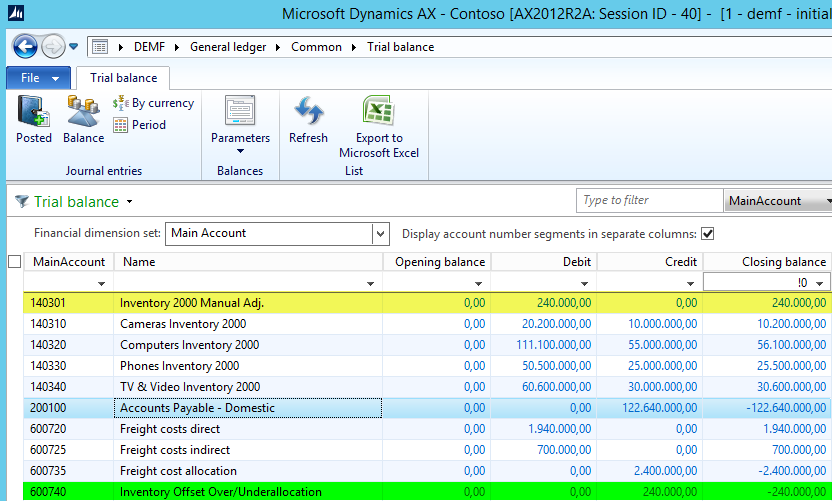 Note that using this option has the disadvantage that the remaining over-/underallocated freight cost amount is shifted to the inventory accounts in the balance sheet at the General Ledger level only. In other words, the postings generated by the allocation rule cannot be identified in the inventory module.
Option 3
To overcome the disadvantage of the previous option, a direct inventory value adjustment can be recorded in the inventory module as illustrated in the next screenshot.
 The major advantage with this option is that inventory values in General Ledger and the Inventory module match automatically. Yet, this advantage comes at the cost of a higher complexity and effort to identify and record the amounts that need to be adjusted. (Among others, you have to clarify how to distribute the remaining over-/underallocated amount to the different inventory items).
Irrespective of the option chosen to handle the remaining over-/underallocated freight costs, it is a good practice to review the automatic freight allocation charge setup at least once a year to ensure that the total over-/underalloacated amount remains small.






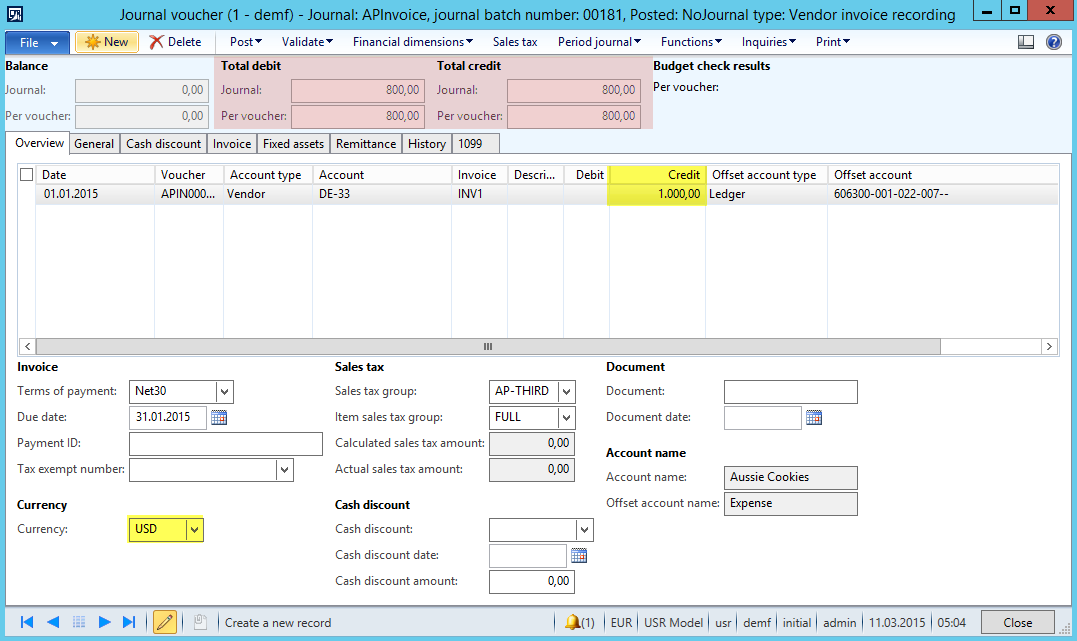
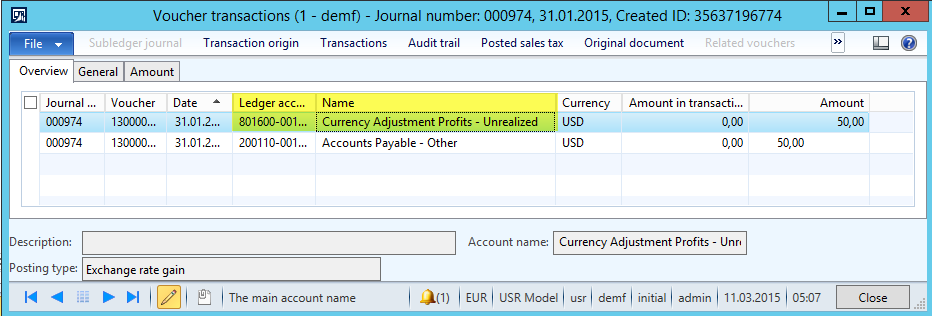
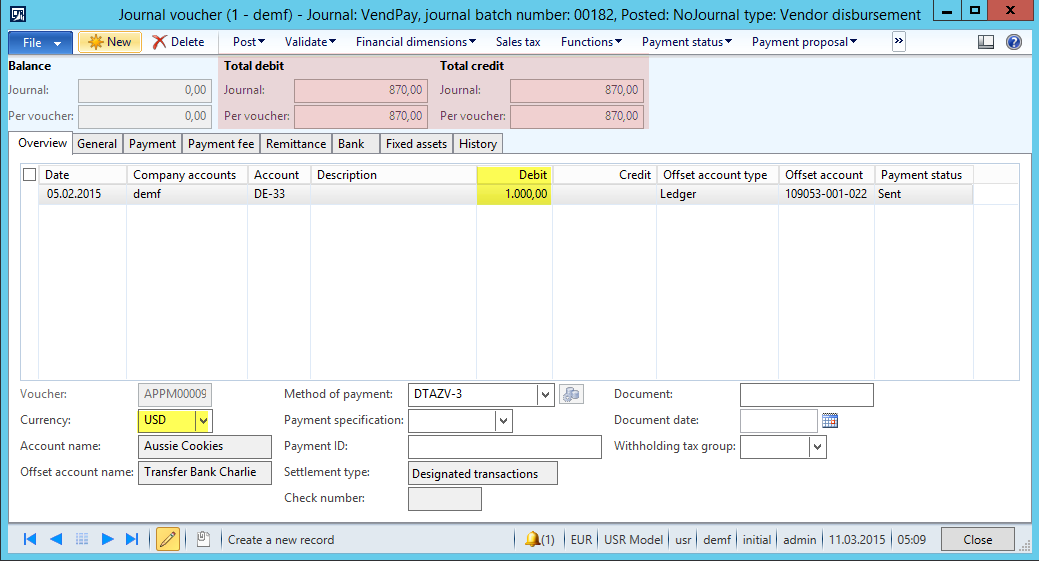
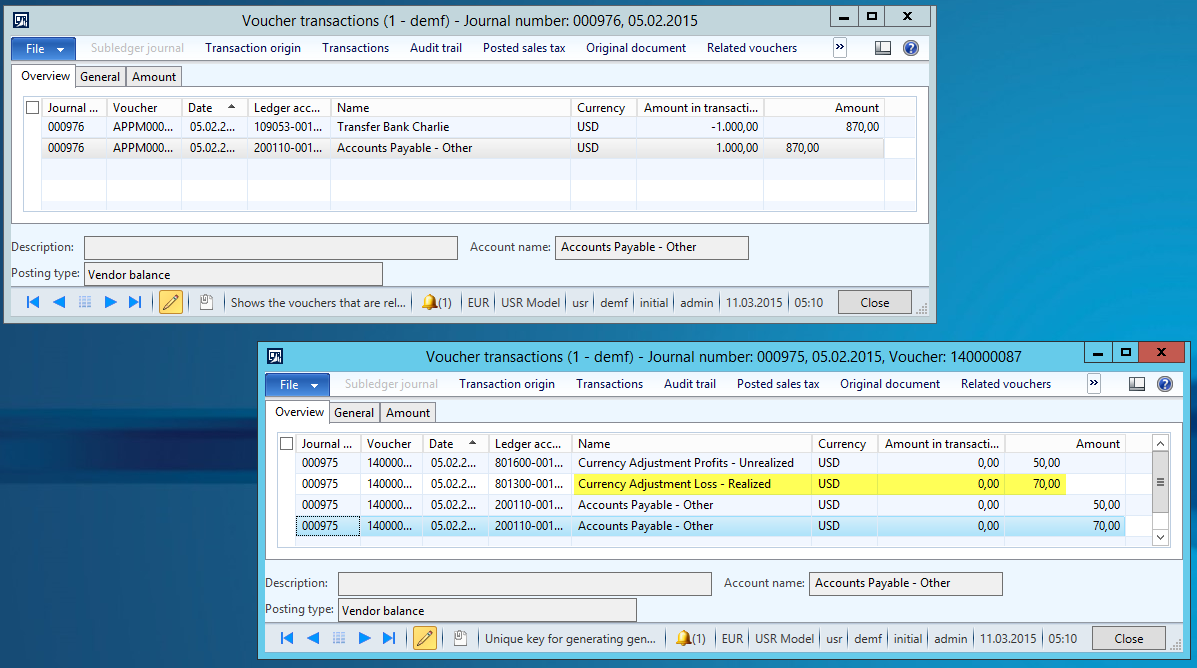
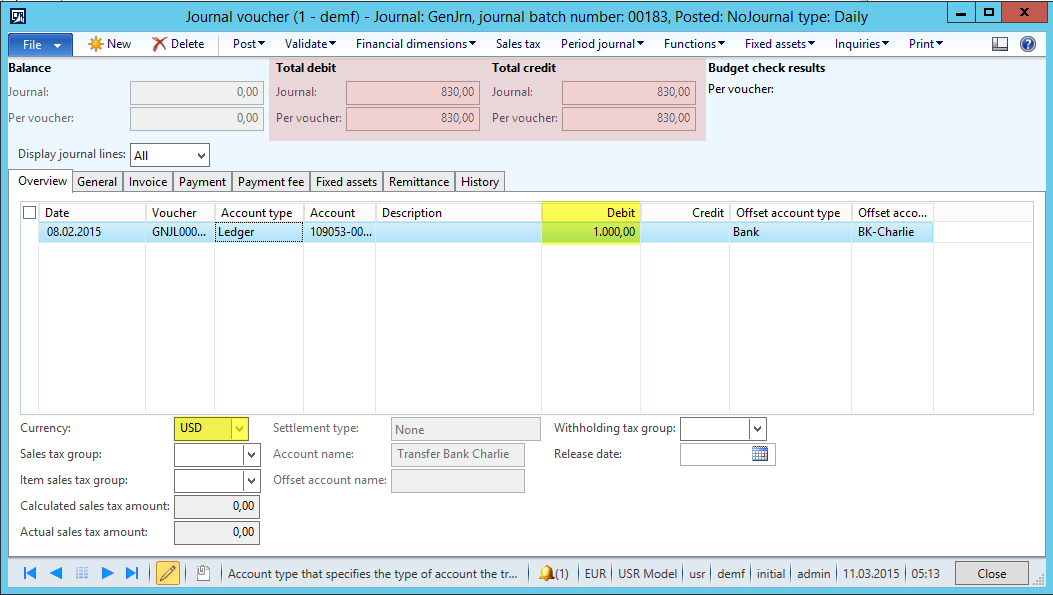
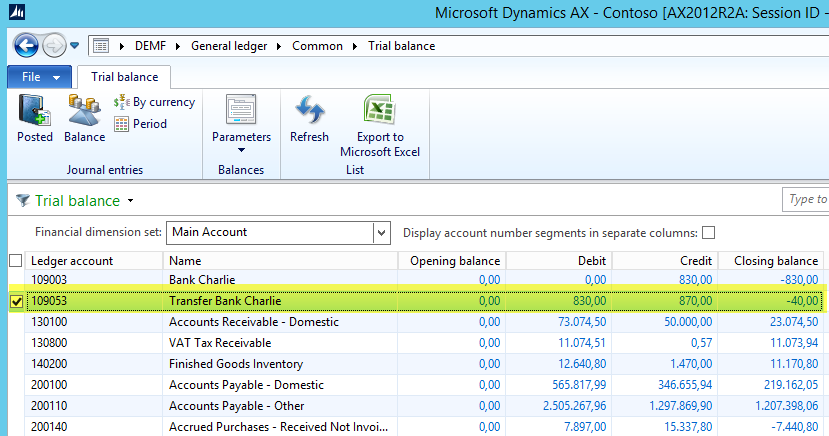
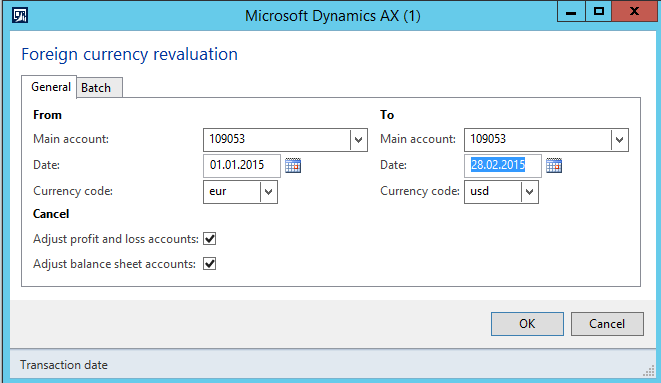
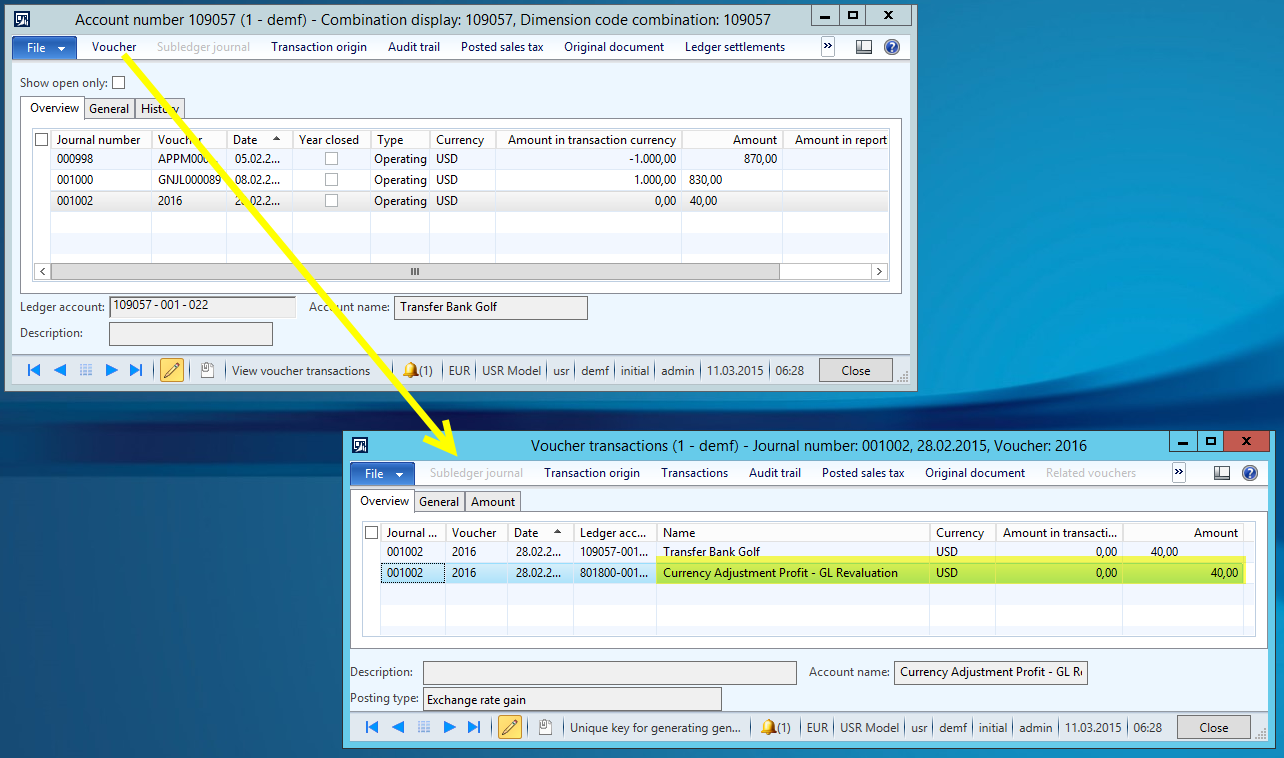
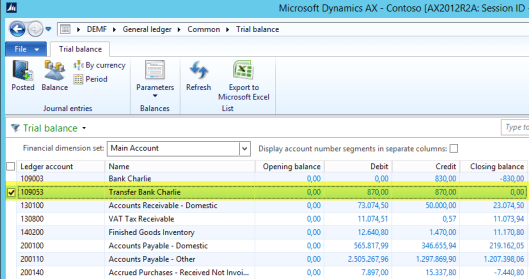 If one takes a close look at the foreign currency posting that is made to clear the balance on the transfer account, one can identify that the balance was posted on the ledger account that is used for recording unrealized exchange rate losses (see the next screenshot).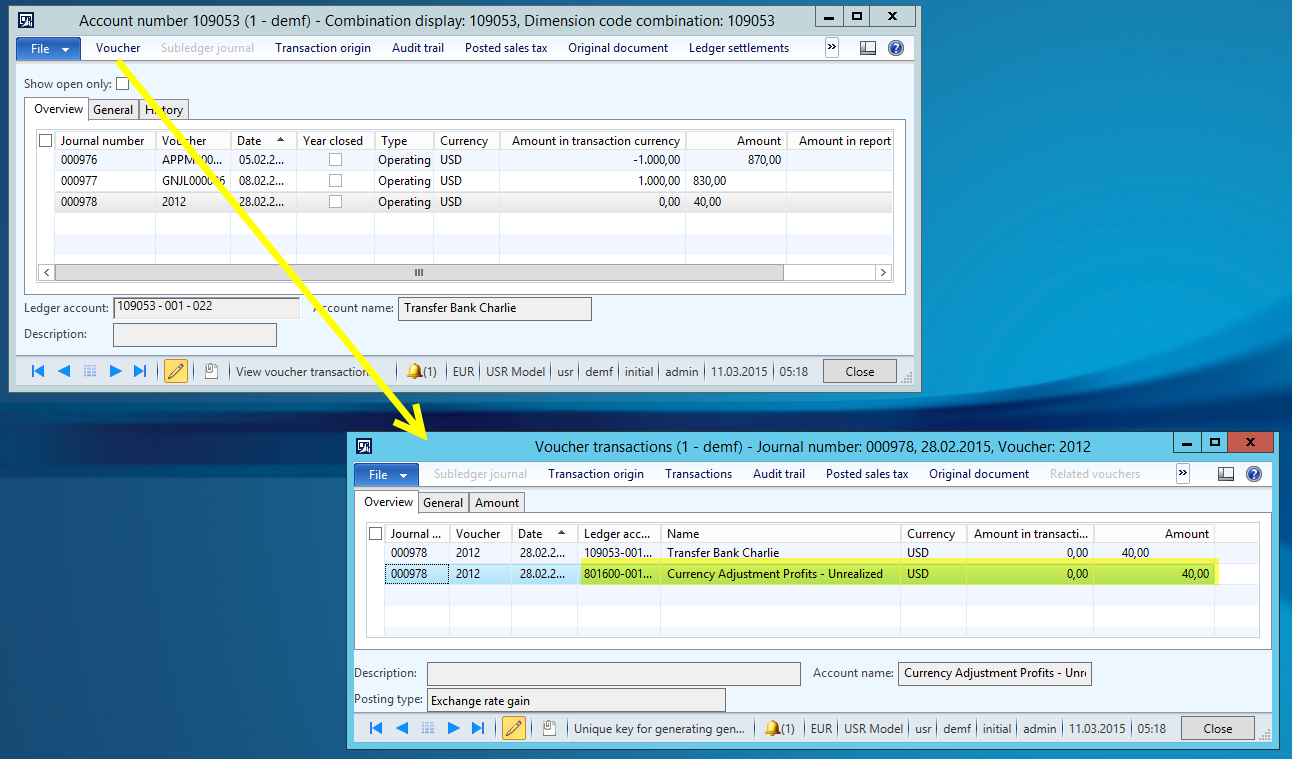
 Microsoft BizApps Finance & Controlling