• Home
  • About Me
  • Contact
  • German
  • TestPage

Microsoft BizApps Finance & Controlling

Microsoft BizApps Finance & Controlling

Category Archives: Management Reporter

Management Reporter

Stockholders equity statement

19 Friday Oct 2018

Posted by Ludwig Reinhard in General Ledger, Management Reporter

≈ Comments Off on Stockholders equity statement

Tags

Annual report, Reporting, Statement of Equity

This webcast demonstrates how one can create a stockholders equity statement in the standard MSDyn365FO application with the help of reason codes and the Management Reporter. A major focus is made on demonstrating how to setup the Management reporter stockholders equity report that necessitates the calculation of multiple beginning and ending balances for the different periods covered. The principle demonstrated in this webcast can be applied to other reporting scenarios such as cash flow reports or reports that detail accruals and changes in accrual balances.

StockholdersEquityStatement_English

StockholdersEquityStatement_English


Link multiple Management Reporter reports

20 Friday Jan 2017

Posted by Ludwig Reinhard in Management Reporter

≈ 1 Comment

Tags

Link reports, Management Reporter

Linking different Management Reporter (MR) reports is a common finance scenario when for example the profit/loss from the Income Statement (IS) is linked to the equity section of the Balance Sheet (BS).

Microsoft provided a detailed description, which exemplifies how this linkage between the IS and BS reports can be established. For details, please see the following website.

Some time ago I was confronted with the requirement of linking multiple MR reports to a newly created one. As Microsoft already provided a detailed description of the necessary setup steps, I initially thought that linking multiple MR reports just follows the same principle, which is required for linking a single report.

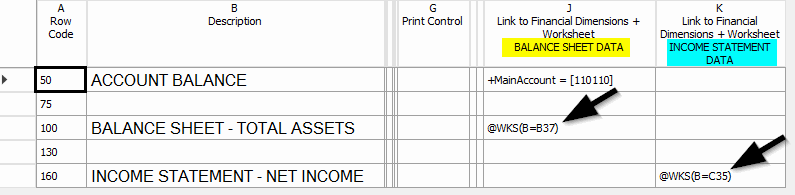
For that reason (and based on the Microsoft guideline), I simply added two instead of a single row link in my MR row definition to get the data from the BS and IS report loaded into my newly created report. The next screen-print exemplifies this setup, where the first row link (‘BS’) links to the Balance Sheet report and the second one (‘IS’) links to the Income Statement report.
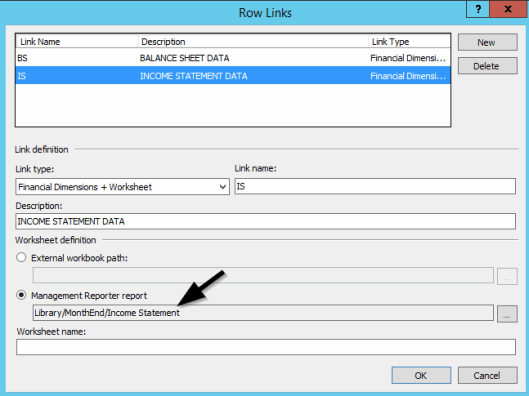
en_202_0005

The row definition of my newly created report consequently includes two rather than a single column that reference the cells in the already existing MR reports through the ‘@WKS(…)’ fields.
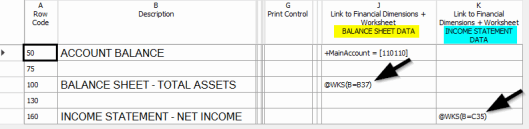
en_202_0010

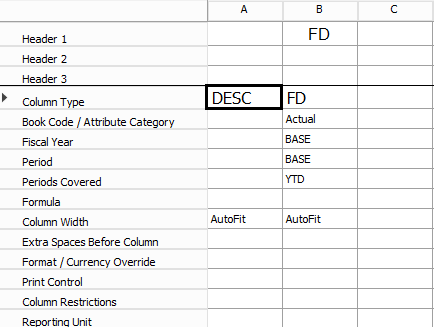
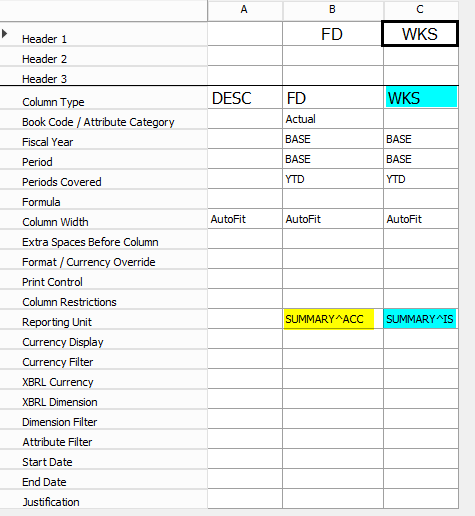
The column definition used was identical to the one used in the Microsoft guideline and included only a single FD (financial dimension) column. The next screen-print illustrates the setup of this so-called column definition.
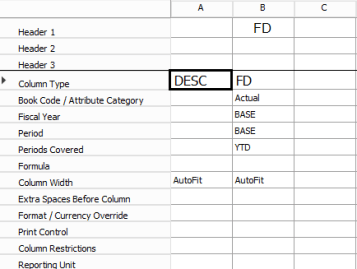
en_202_0015

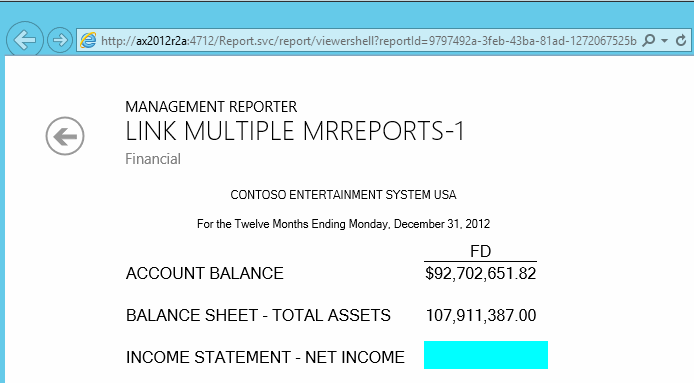
After having done all the setups that I considered important, I was very much disappointed once I noticed that the report did not include the IS data.
en_202_0020

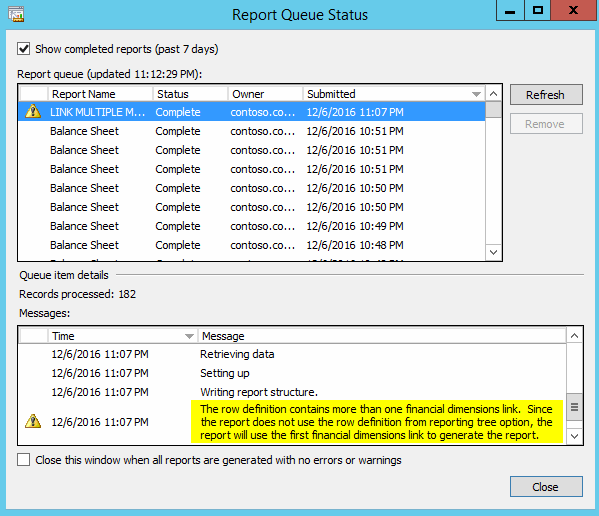
Some additional investigation of the report creation process lead me to the report queue status form where I noticed the following message:
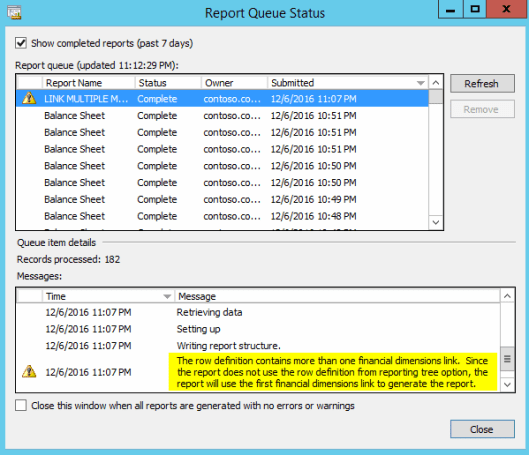
en_202_0025

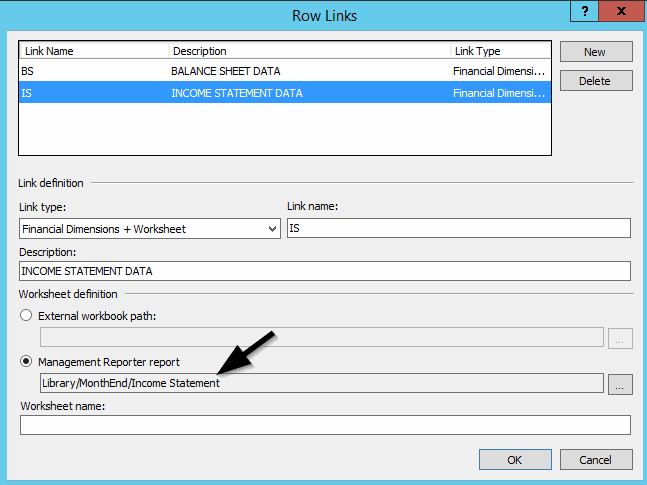
Based on this warning message, the report setup with the two row links obviously seemed to be the wrong approach to incorporate data from multiple other MR reports into my newly created one. To get this corrected, I first changed the link type for the Income Statement data to ‘Management Reporter Worksheet’.
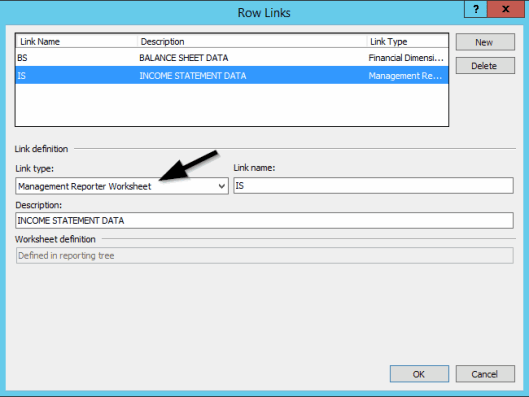
en_202_0030

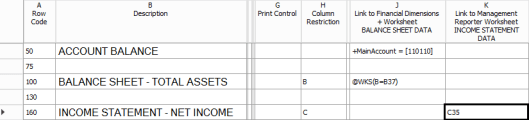
In line with this change, the cell reference was changed from ‘@WKS(B=C35)’ to ‘C35’ and a column restriction was incorporated into the row definition setup, which is exemplified in the next screen-print.
en_202_0035

In addition, a reporting tree was setup, which linked to the different financial dimensions/worksheets specified in the row definition setup form. Example:

en_202_0040

warningsign1 It is important that all financial dimensions/worksheet references, which are specified in the row definition form are included in the reporting tree. Otherwise, the report generation will interrupt with an error message.

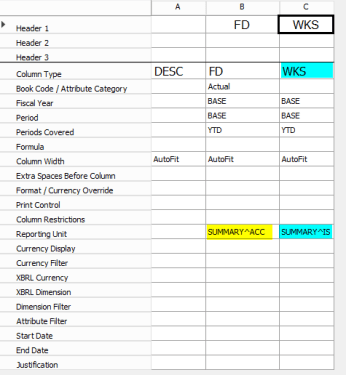
The last setup required relates to linking the different reporting tree elements to the report columns. How this linkage can be established is illustrated in the next screen-print.
en_202_0045

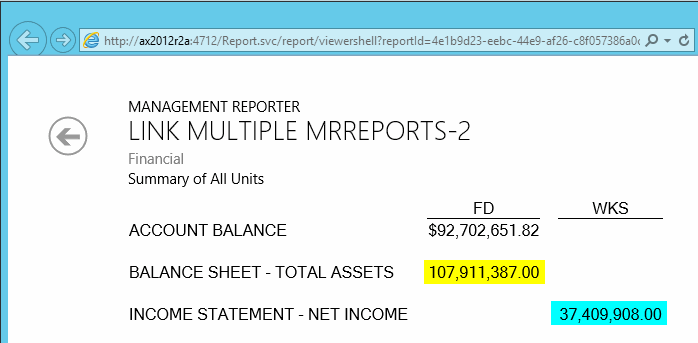
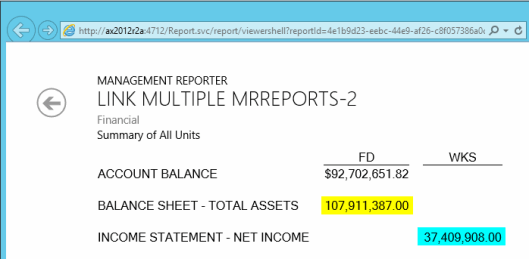
With those report modifications in place, the report could finally be created and showed all the data retrieved from the other MR reports. The report could of course be further refined by including the values shown in the FD and WKS column into a single one. For reasons of brevity this exercise is, however, skipped here and left as an exercise for the reader.
en_202_0050

warningsign1In order to allow you a direct comparison with the Microsoft guideline referenced in the beginning, all setups and reports exemplified in this post have been created with the MR version CU12. In more recent MR versions, the link type ‘Financial dimension + Worksheet’ has been removed. As a result, linkages to multiple MR reports can only be realized through the ‘Management Reporter Worksheet’ link that has been used for incorporating the IS data above.

Management Reporter – Unit Security

18 Sunday Sep 2016

Posted by Ludwig Reinhard in Management Reporter

≈ 1 Comment

Tags

Data access, Reporting Tree, Restriction, Unit Security

Within this post I would like to present a feature that allows you restricting the access to data included in Management Reporter financial reports. A common business scenario where this feature can be applied are situations where business unit/cost center managers shall only have access to the data of the business unit/cost center they are responsible for.
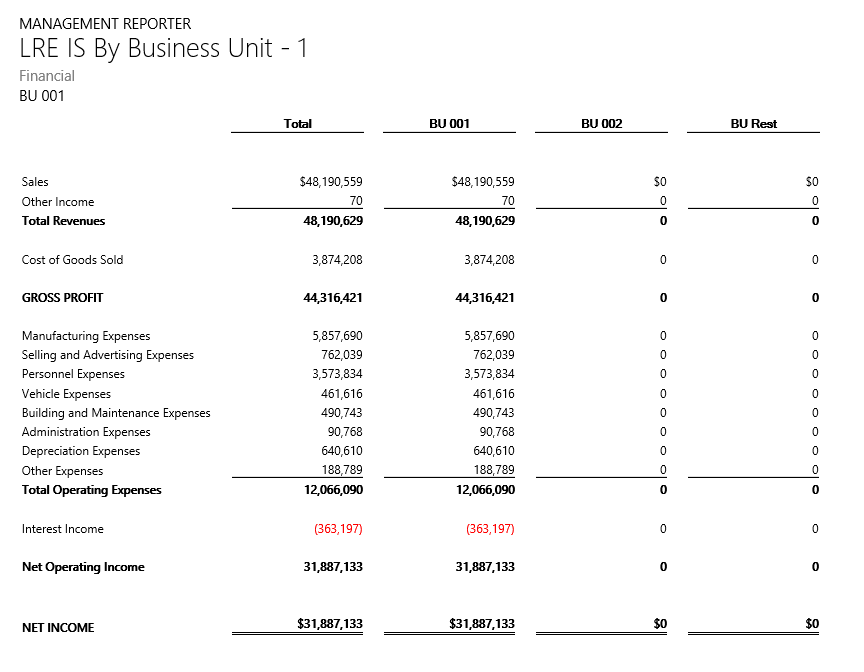
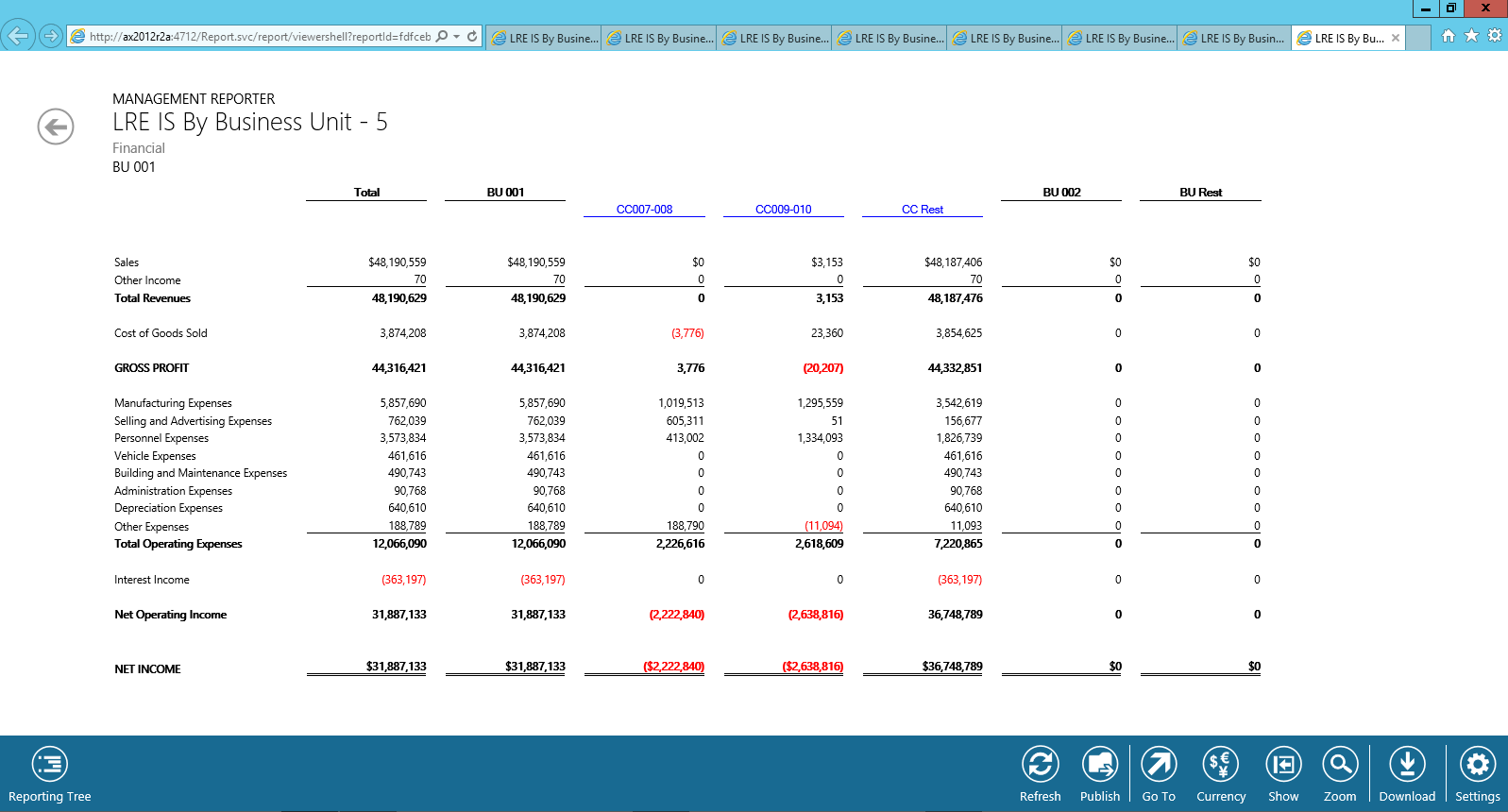
Let’s have a look at the following Income Statement report that shows the total amounts split up by business units to see how the Management Reporter unit security feature can be applied.
EN_128_0005
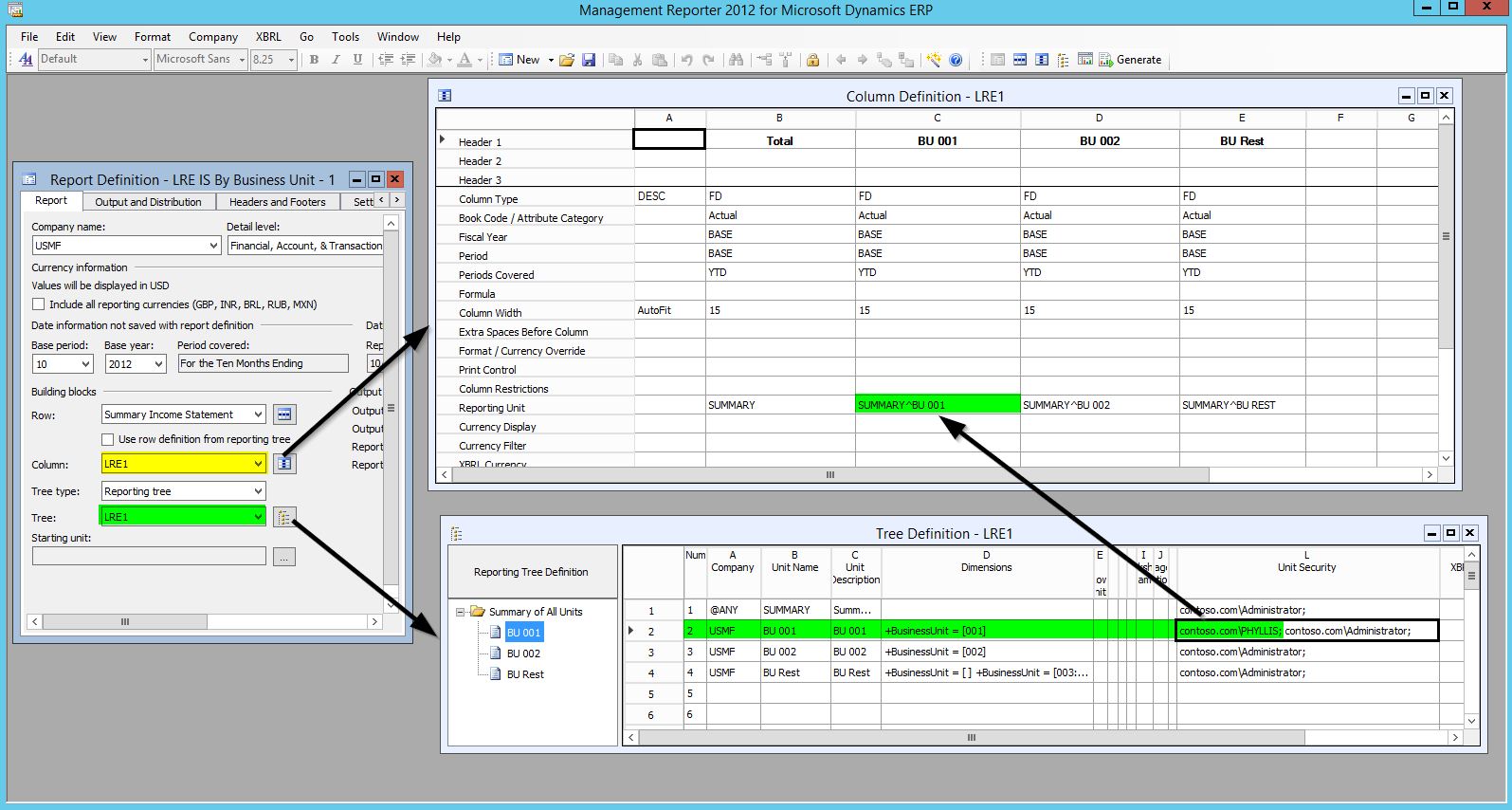
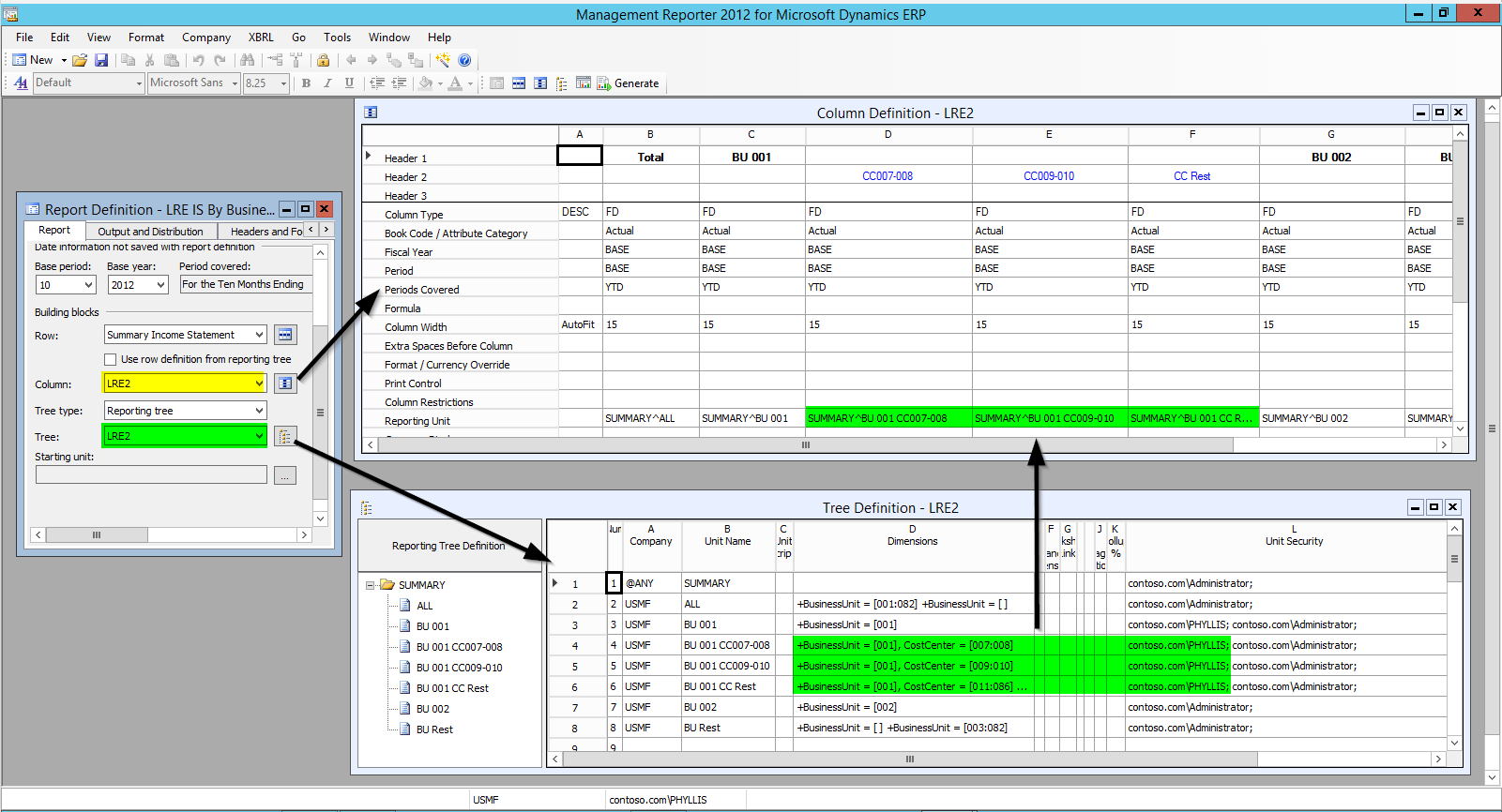
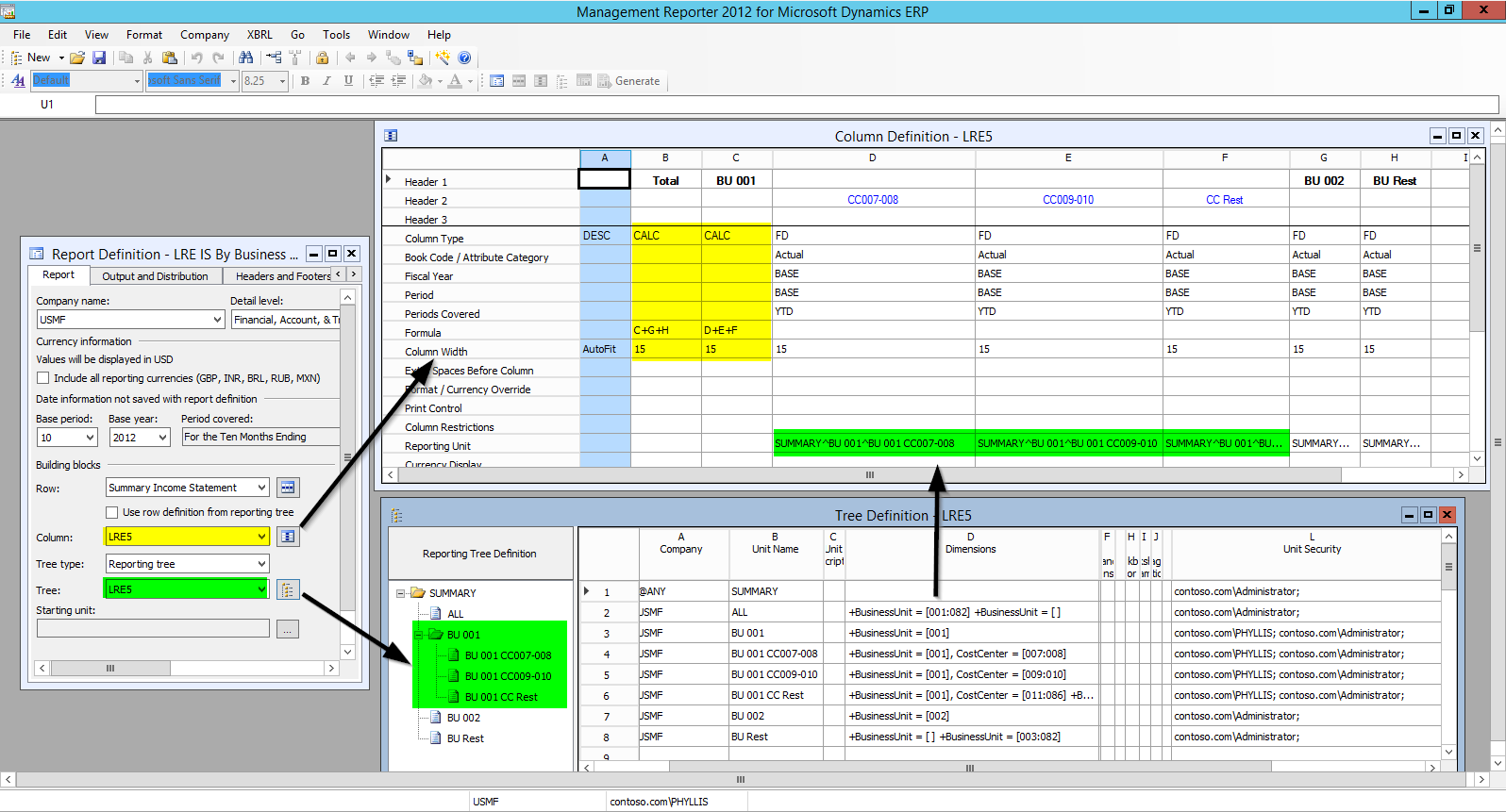
Assume that we want to restrict the report data access for Phyllis, the manager of business unit BU001, in a way that she has Access to the Income Statement data of her business unit only. This restriction can be accomplished by setting up a report with a reporting tree that includes the respective users in the unit security column. Because the report includes all business units next to each other in separate columns, the reporting tree elements need additionally to be linked to the respective columns. This is linkage and the unit security setup is illustrated in the next screen-print.
EN_128_0010
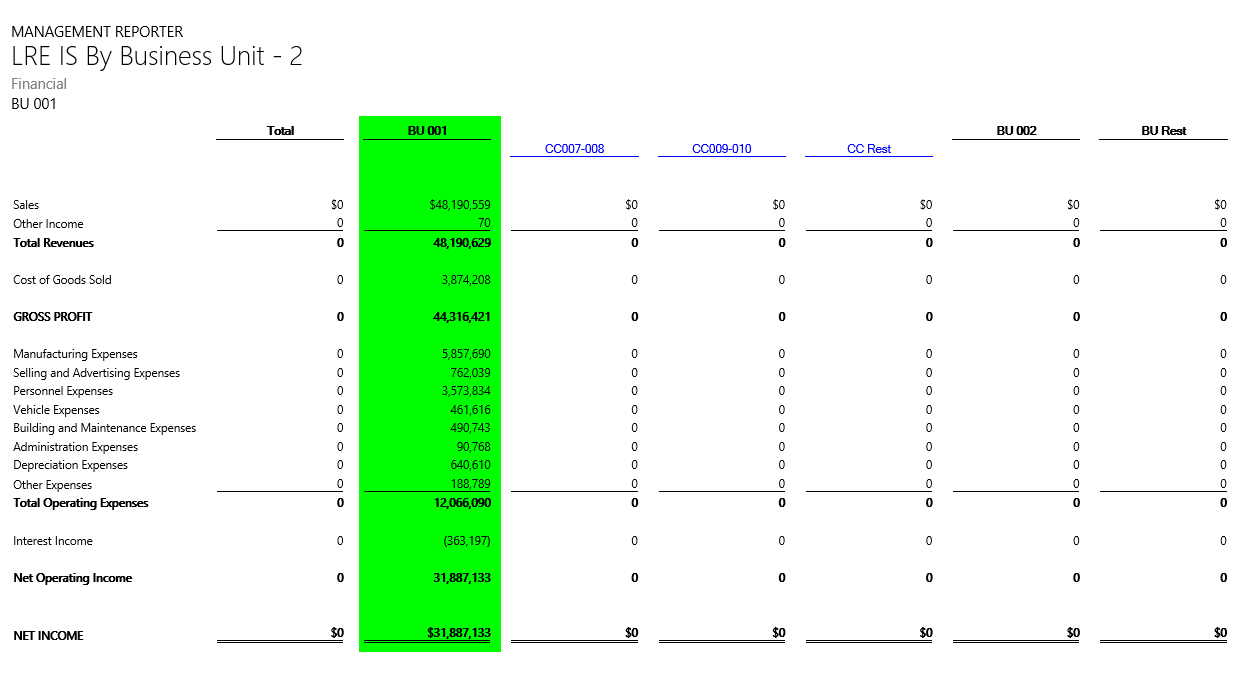
With this setup in place, Phyllis will see the following report, once she opens it.
EN_128_0015


Notes:
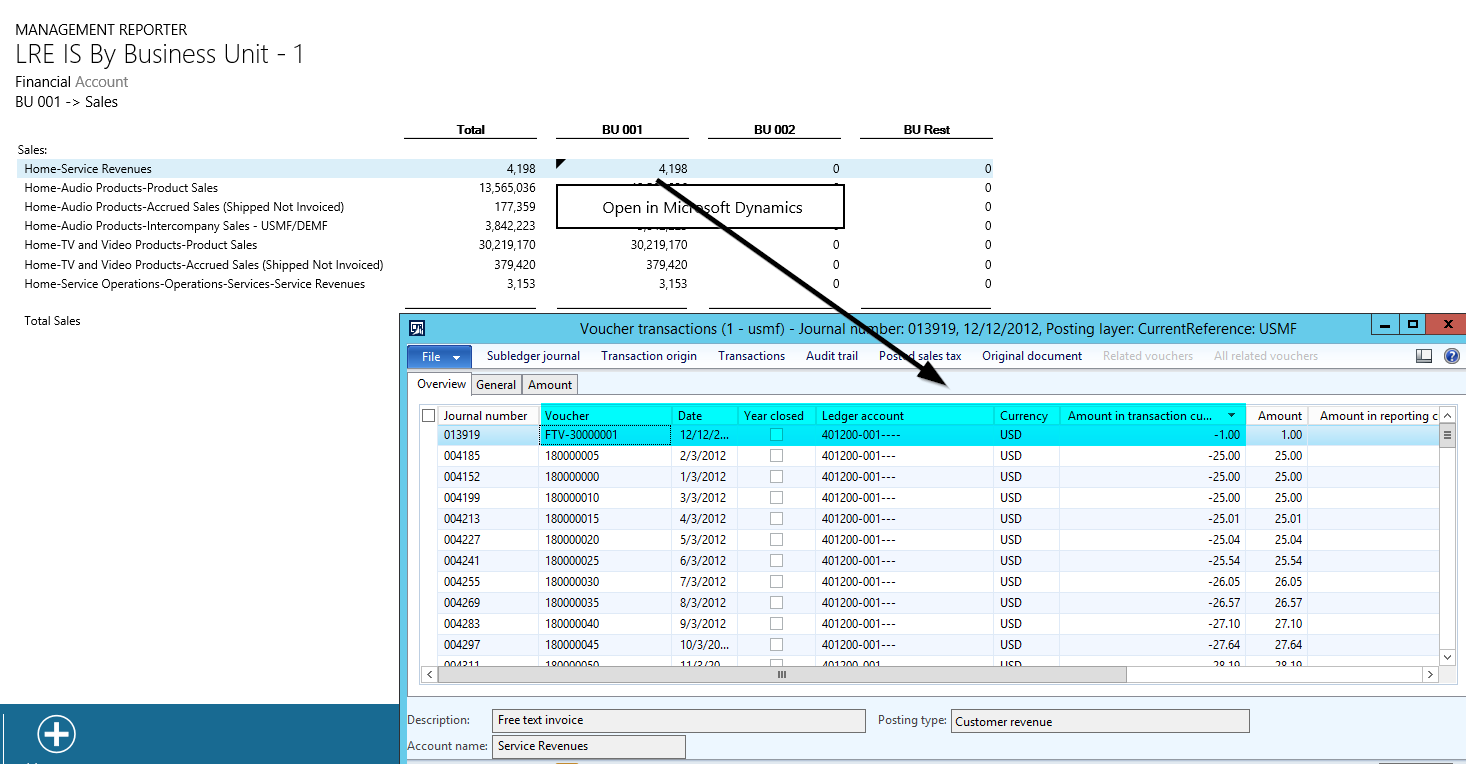
The security restriction setup does also apply to the Management Reporter drill down functionality in Dynamics AX. That is, if Phyllis wants to see the voucher transaction details that make up a specific amount shown in the report and drills down into the Dynamics AX voucher transactions, she will only see the filtered transactions for her business unit. This system behavior is illustrated in the next screen-print:
EN_128_0020
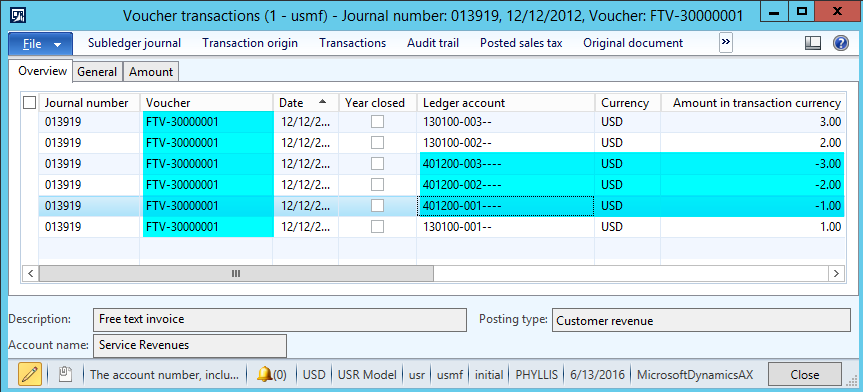
A second thing to note here is that the Management Reporter unit restriction does not control whether or not Phyllis can open and access all transaction details through the Dynamics AX client directly. In the example used Phyllis can, for example, log into the Dynamics AX client and access the complete voucher details including the amounts that were recorded for the other business units. Example:
EN_128_0025
If you have users that can circumvent the Management Reporter unit restriction this way, you have ensure that you also implement the extensible data security framework in Dynamics AX. Otherwise, the unit security feature does not make much sense. Please see the following sites 1 / 2 for additional information on the extensible data security framework.


Report modification 1
Now let’s have a look at some Management Reporter design considerations that you should be aware of when making use of the unit security feature and reporting trees in general. Let’s imagine that the Income Statement report shown previously is modified in a way that also the cost centers that make up a business unit are included in separate report columns. If you follow the same unit restriction setup shown previously also for the sub-elements of the business units …
EN_128_0030
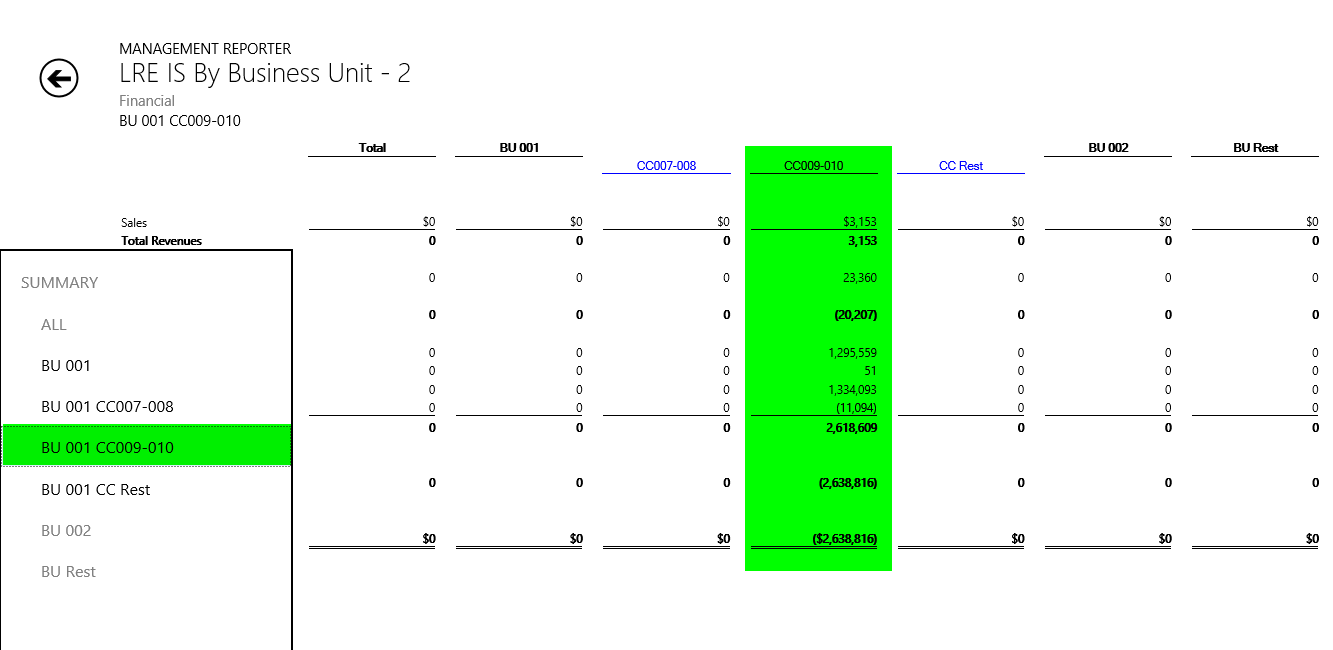
… users won’t see all details once they open their report. In the example used Phyllis, will see the following data when opening the report:
EN_128_0035
The data for the cost centers that make up the business unit cannot immediately be identified but rather have to be opened separately by selecting one of the business units. Example:
EN_128_0040


Report modification 2
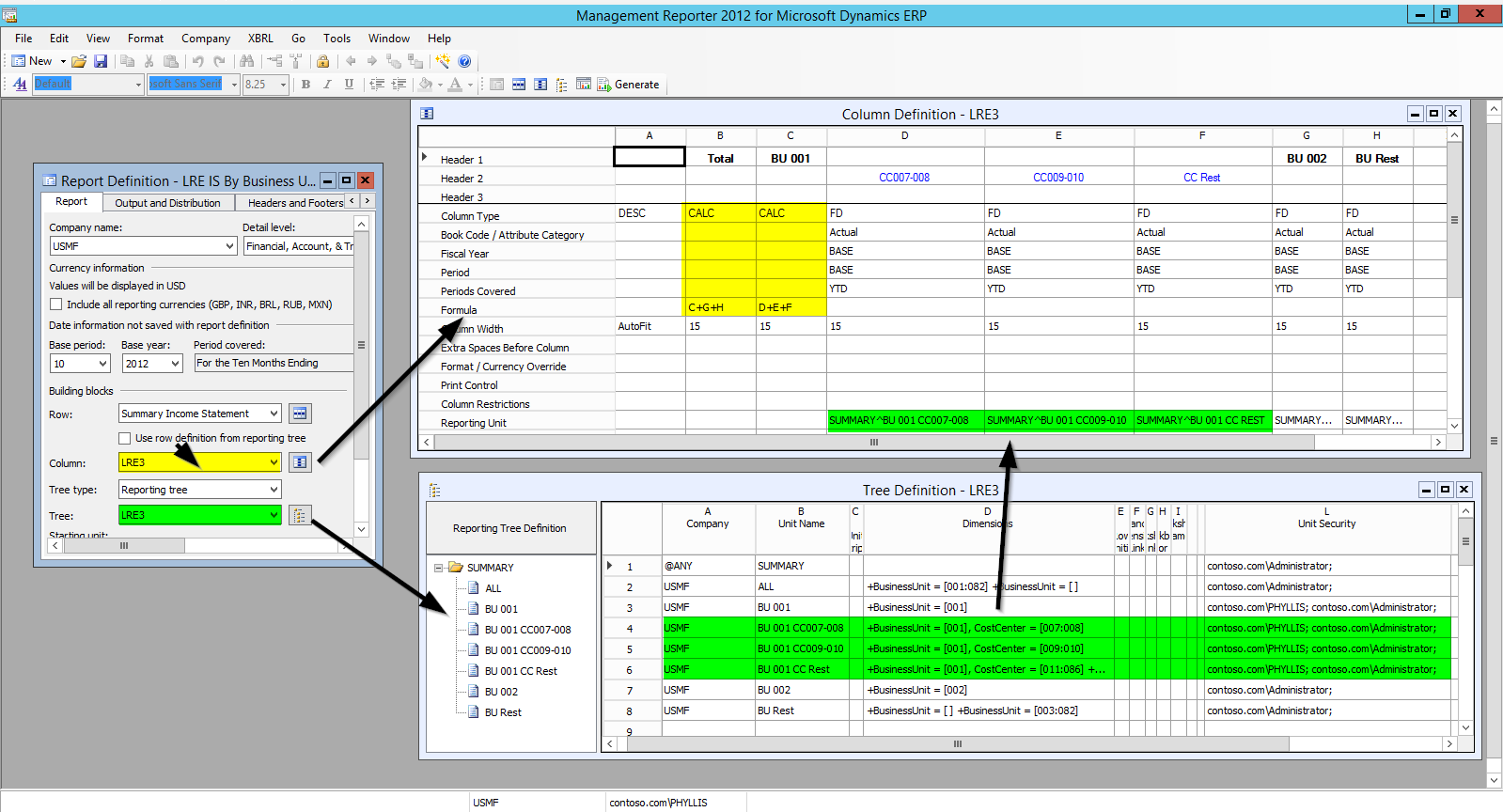
Because of the previous data illustration issue, the report is modified once again in a way that the business unit and total columns are now setup as computed columns. (Please see the yellow highlighted section in the next screen-print).
EN_128_0045
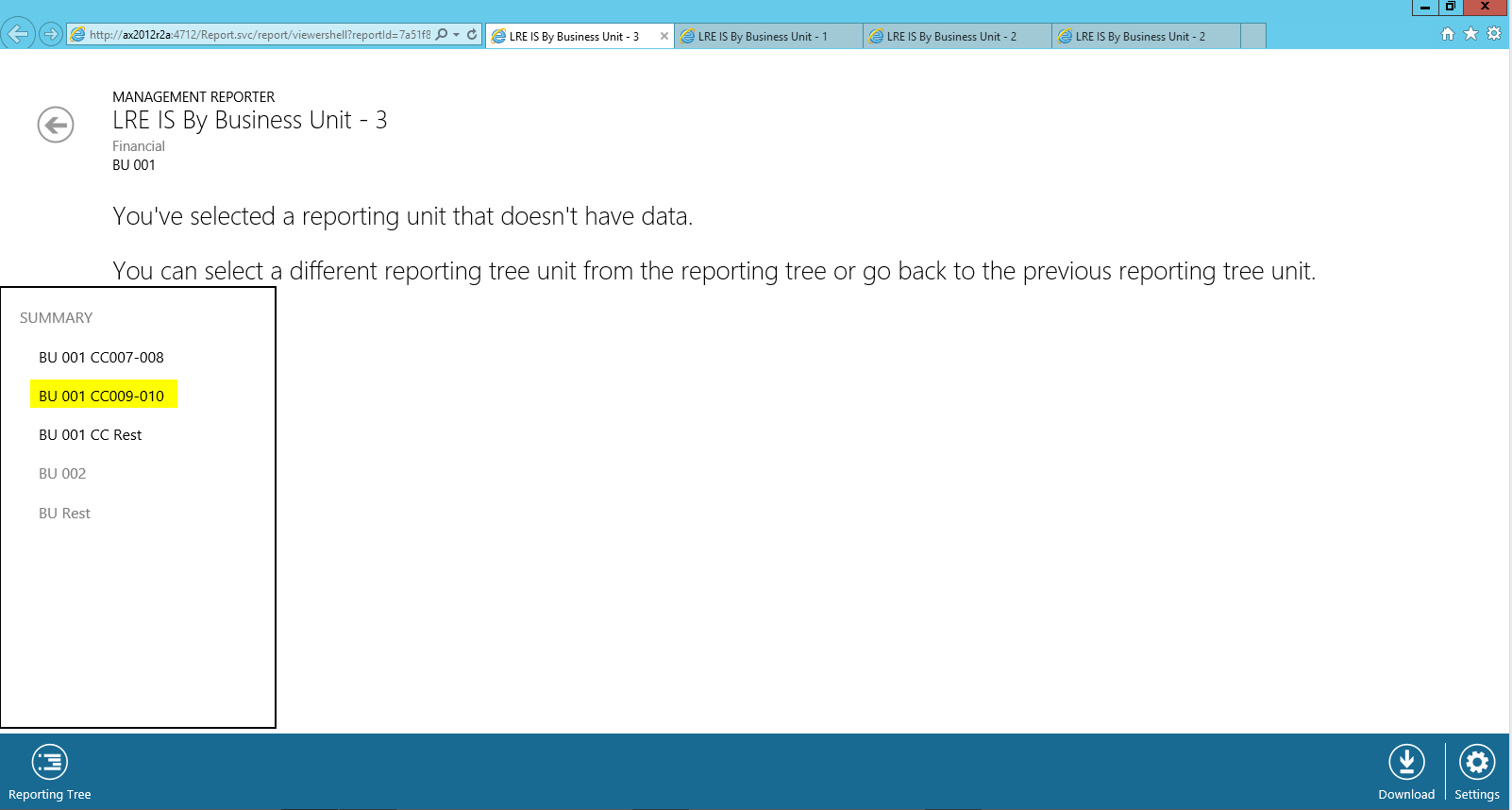
With this setup in place, Phyllis will get the following message once she opens the report.
EN_128_0050
By selecting one of the cost center elements, she will finally be able to see the data for the selected cost center but not automatically for the other ones without selecting them separately.
EN_128_0055


Report modification 3
To avoid that the Income Statement report opens with an error message for the business unit / cost center managers, the report design is further modified as follows:
EN_128_0075
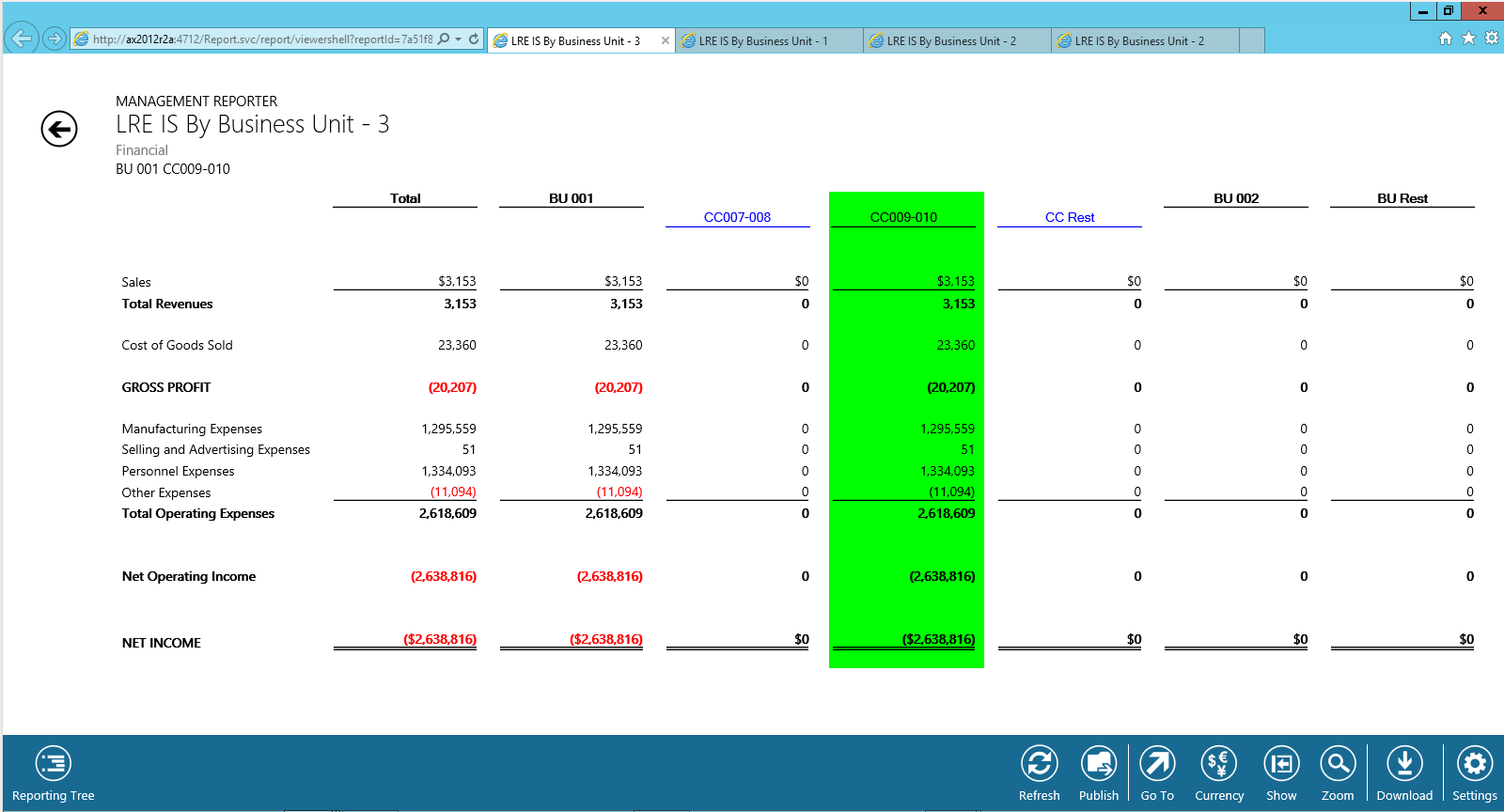
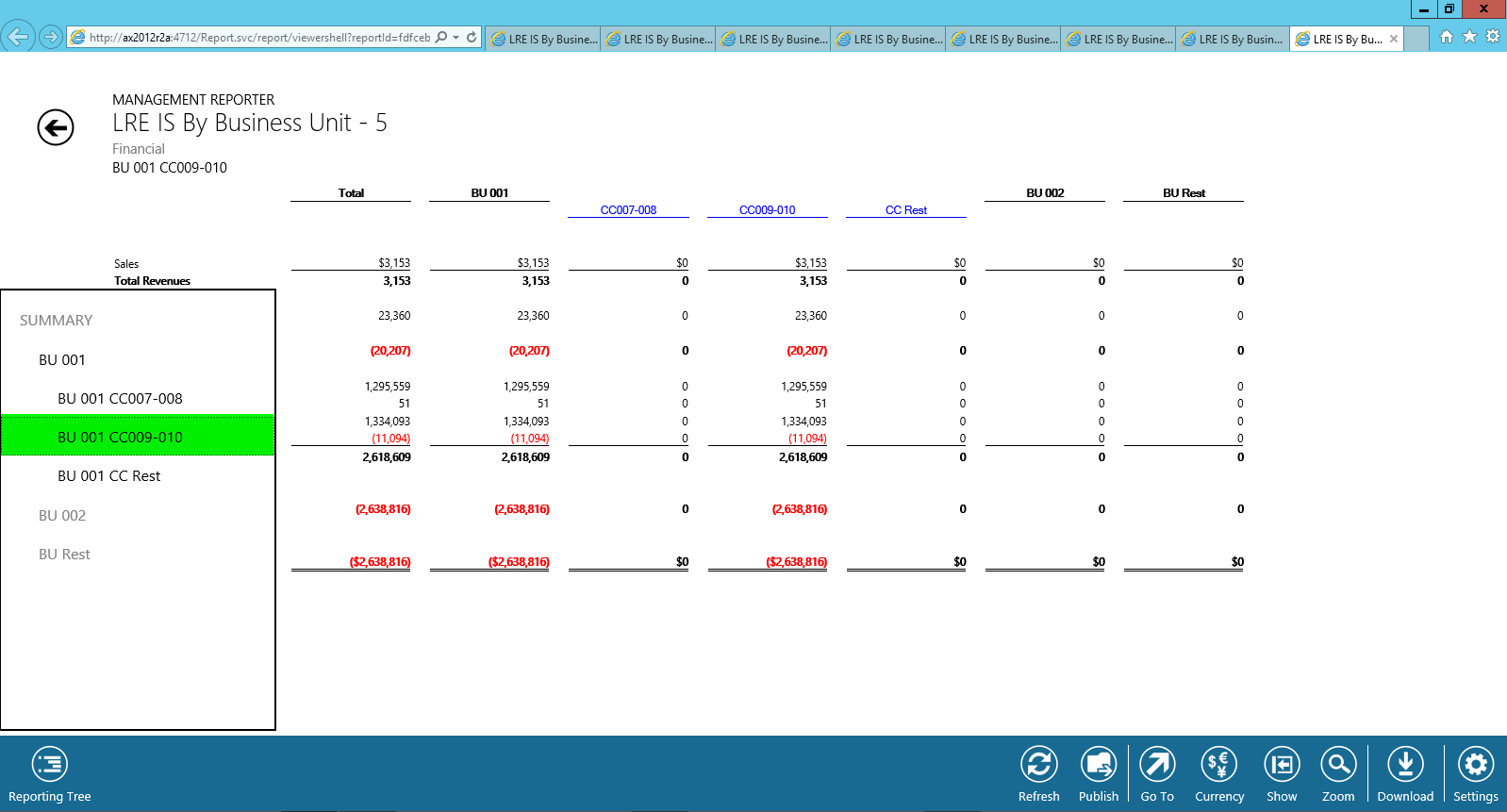
The major difference to the previous setup is that cost center sub-elements that make up the business division are now intended in the reporting tree. This setup finally ensures that Phyllis is able to see all data of the business unit she is responsible for when opening the report.
EN_128_0080
If Phyllis drills down to the different sub-elements, the report will filter the selected data respectively. Example:
EN_128_0085


Summary
I hope the different examples gave you an impression what to look out for when designing Management Reporter reports that include reporting trees and make use of the unit security feature. The major take away from this post is that setting up the unit security feature in Management Reporter does not make much sense if users can circumvent those restrictions by extracting the data directly from the AX client. To avoid such scenarios you have to ensure that the extensible data security framework is applied concurrently in the AX client.

← Older posts
Newer posts →

Microsoft BizApps Deutschland Podcast

Dynamics UserGroup Deutschland

Project Accounting Book – Part 2

Project accounting book

Categories

  • Accounts Payable
  • Accounts Receivable
  • Bank Management
  • Book reviews
  • Budgeting
  • Cost accounting
  • Fixed Assets
  • General Ledger
  • Inventory
  • Management Reporter
  • Miscellaneous
  • Podcast
  • PowerPlatform
  • Project
  • Sustainability
  • Uncategorized

Tags

Advanced bank reconciliation AI Allocations Artificial Intelligence Automation Azure Bank reconciliation BizApps Budgeting Controlling Copilot Copilot Studio Cost accounting module Cost center accounting D365 D365FO Dynamics 365 Dynamics AX Dynamics AX 2012 Electronic reporting Email Environment Flow Global Warming invoice invoice recording IOT LEGO Management Accounting MS Flow MT940 PowerApps Power Apps PowerAutomate Power Automate PowerPlatform Power Platform Process Mining Project RPA Security SharePoint Sustainability Sustainability Accounting Sustainability Manager Tax time recording Vendor payments WBS workflow

Enter your email address to follow this blog and receive notifications of new posts by email.

Subcribe

  • RSS - Posts
  • RSS - Comments

Legal

  • Disclaimer

Important Websites

  • Microsoft BizApps Links

Archives

  • July 2025
  • June 2025
  • May 2025
  • April 2025
  • March 2025
  • February 2025
  • January 2025
  • December 2024
  • November 2024
  • October 2024
  • September 2024
  • August 2024
  • July 2024
  • June 2024
  • May 2024
  • April 2024
  • March 2024
  • February 2024
  • January 2024
  • December 2023
  • November 2023
  • October 2023
  • September 2023
  • August 2023
  • July 2023
  • June 2023
  • May 2023
  • April 2023
  • March 2023
  • February 2023
  • January 2023
  • December 2022
  • November 2022
  • October 2022
  • September 2022
  • August 2022
  • July 2022
  • June 2022
  • May 2022
  • April 2022
  • March 2022
  • February 2022
  • January 2022
  • December 2021
  • November 2021
  • October 2021
  • September 2021
  • August 2021
  • July 2021
  • June 2021
  • May 2021
  • April 2021
  • March 2021
  • February 2021
  • January 2021
  • December 2020
  • November 2020
  • October 2020
  • September 2020
  • August 2020
  • July 2020
  • June 2020
  • May 2020
  • April 2020
  • March 2020
  • February 2020
  • January 2020
  • December 2019
  • November 2019
  • October 2019
  • September 2019
  • August 2019
  • July 2019
  • June 2019
  • May 2019
  • April 2019
  • March 2019
  • February 2019
  • January 2019
  • December 2018
  • November 2018
  • October 2018
  • September 2018
  • August 2018
  • July 2018
  • June 2018
  • May 2018
  • April 2018
  • March 2018
  • February 2018
  • January 2018
  • December 2017
  • November 2017
  • October 2017
  • September 2017
  • August 2017
  • July 2017
  • June 2017
  • May 2017
  • April 2017
  • March 2017
  • February 2017
  • January 2017
  • December 2016
  • November 2016
  • October 2016
  • September 2016
  • August 2016
  • July 2016
  • June 2016
  • May 2016
  • April 2016
  • March 2016
  • February 2016
  • January 2016
  • December 2015
  • November 2015
  • October 2015
  • September 2015
  • August 2015
  • July 2015
  • June 2015
  • May 2015
  • April 2015
  • March 2015
  • February 2015

Blog at WordPress.com.

  • Subscribe Subscribed
    • Microsoft BizApps Finance & Controlling
    • Join 619 other subscribers
    • Already have a WordPress.com account? Log in now.
    • Microsoft BizApps Finance & Controlling
    • Subscribe Subscribed
    • Sign up
    • Log in
    • Report this content
    • View site in Reader
    • Manage subscriptions
    • Collapse this bar
 

Loading Comments...